How Xorkbench works: the audit station and the platform behind it
A walk through the design of Xorkbench in eight diagrams and the station's own screen, from the USB stick a laptop boots from to the certificate at the end. What it checks, how it decides, how it erases, how it unfreezes a drive before a secure erase, and what it still cannot prove.
Updated 25 October 2026
Xorkbench audits used laptops and desktops before they are refurbished and resold. It identifies the hardware, checks for restrictions such as device management enrolment, BIOS passwords and drive encryption, and records anything that needs further investigation. When authorised, it can also erase internal drives and keep the evidence needed to produce an erasure certificate.
The system brings together hardware inspection, drive security checks, data erasure, inventory management and reporting. It is being developed for IT Asset Disposition (ITAD), electronics recycling and wider IT asset management. The aim is to give ITAD providers, recycling companies and IT management teams a reliable way to examine computer hardware, assess data sanitisation results and establish whether the required checks have been completed before deciding on the next steps.
Two principles guide how Xorkbench works:
- Detection only. Xorkbench identifies and reports locks but does not bypass or remove them. Any removal must be handled by the rightful owner through the appropriate process.
- Unknown means unverified. If a check cannot be completed, the result is recorded as UNKNOWN, not PASS. Finding no evidence of a restriction is not the same as being unable to check for one.
Two parts of the system
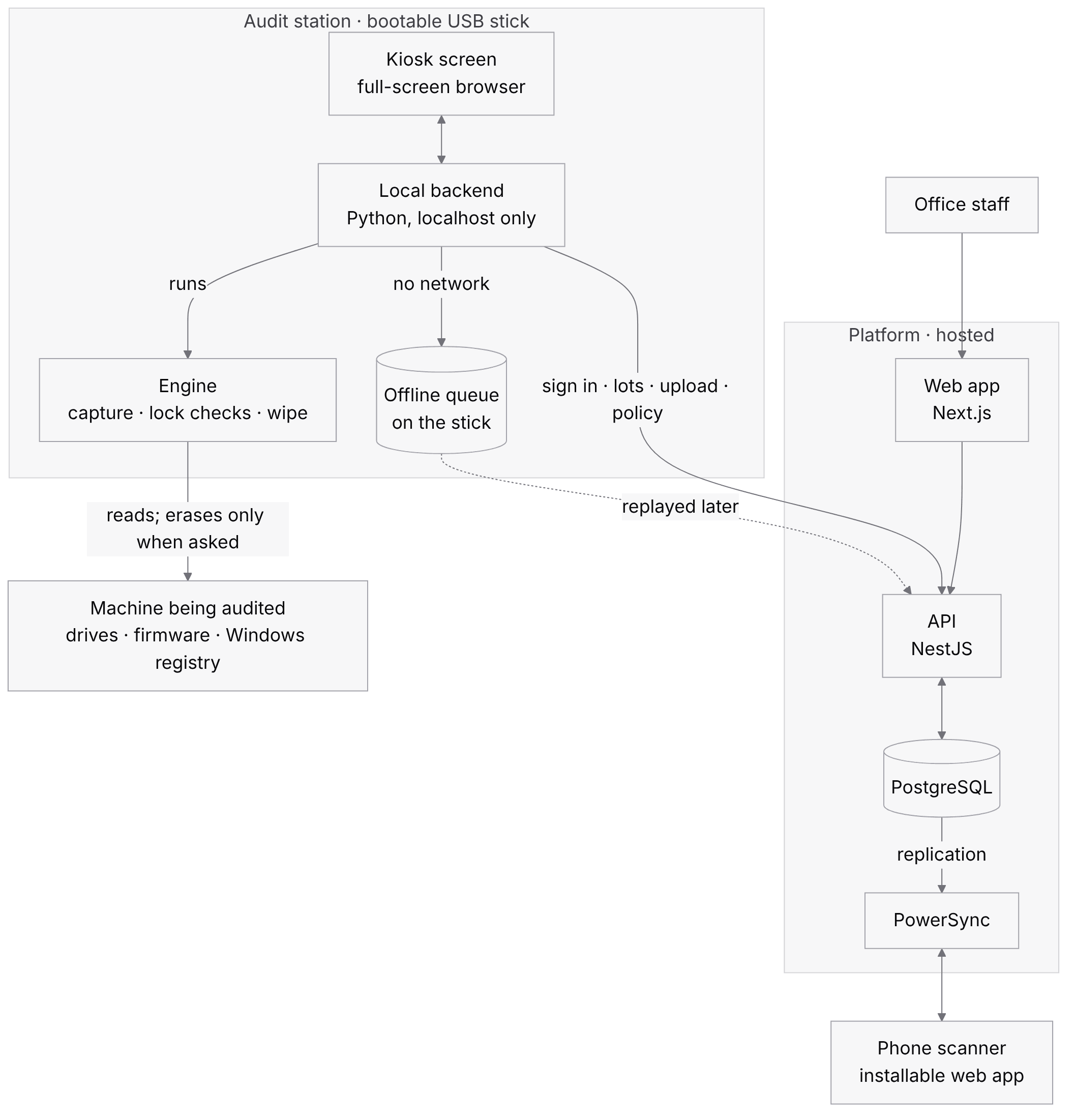
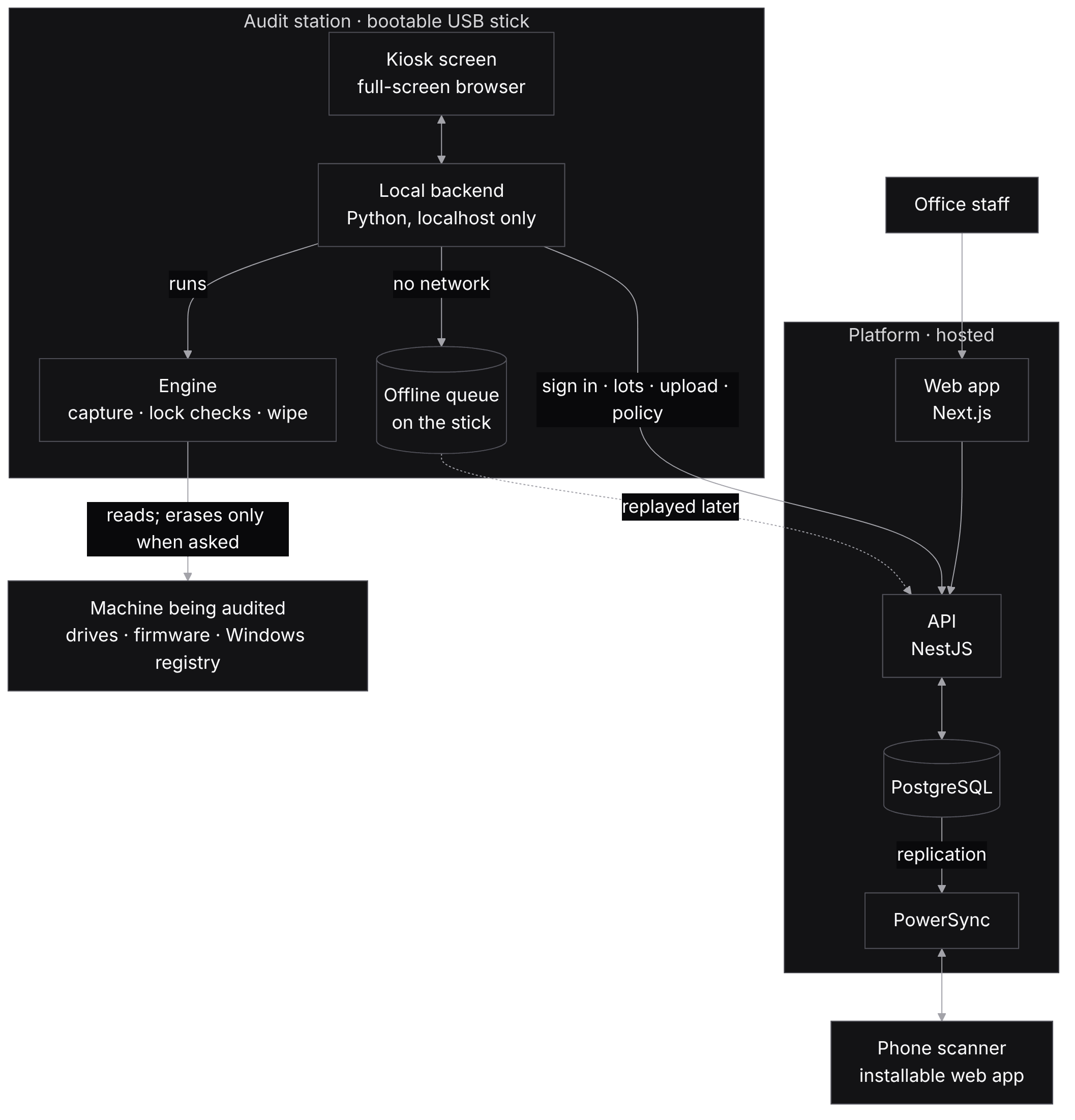
The audit station runs from a bootable USB stick. It starts independently of the computer's installed Windows system, identifies the hardware, performs the available checks and carries out authorised drive erasure when requested.
The platform manages the audit records and inventory. Staff can organise machines into batches and lots, review results, assign grades and download erasure certificates. It uses a NestJS API, a Next.js web application and a PostgreSQL database. PowerSync supports offline use of the phone scanner when there is no internet connection.
The audit station and platform communicate through the API. The station signs in, retrieves available lots and the current sanitisation policy, then uploads each machine's hardware details, audit results and erasure records. This keeps the audit process separate from the central system while ensuring the results are available for review.
Booting the station
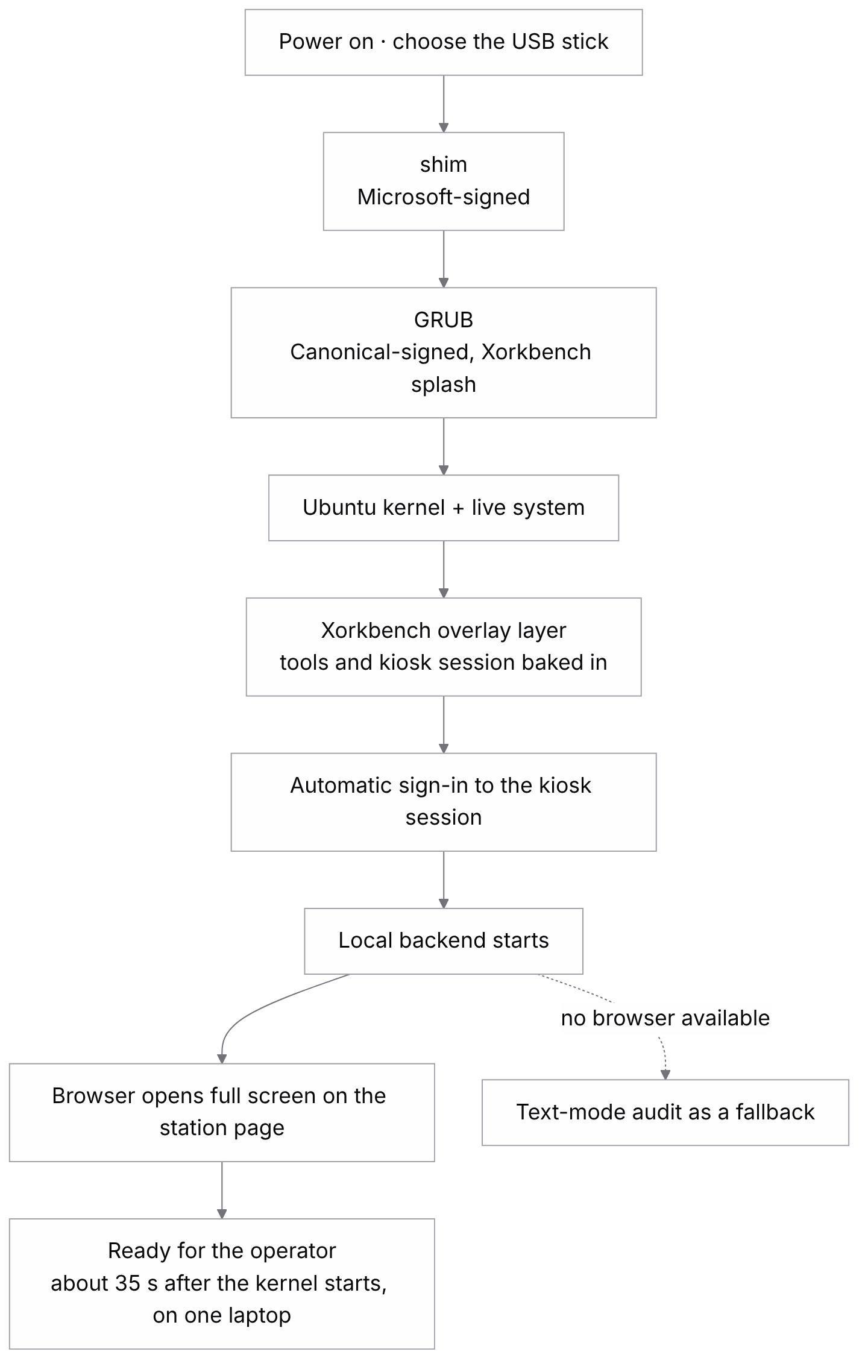
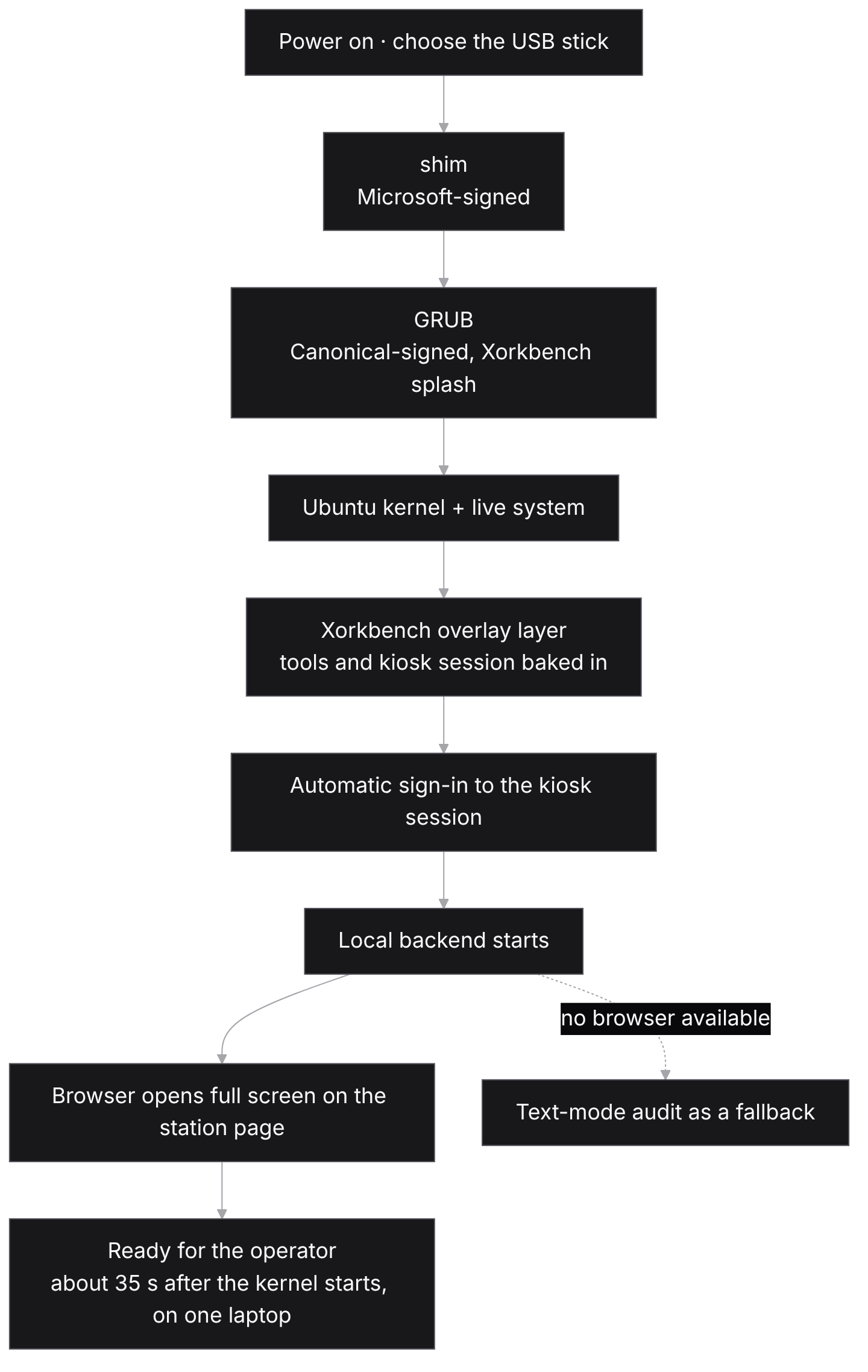
The stick is an Ubuntu 24.04 live image that keeps the standard Microsoft-signed and Canonical-signed boot chain, so it starts on machines that have Secure Boot switched on. That matters more than it sounds. Turning Secure Boot off changes the machine you are assessing, and a BIOS password, one of the things the station exists to detect, can stop you turning it off at all. An earlier SystemRescue stick could not boot with Secure Boot on, and was retired for that reason.
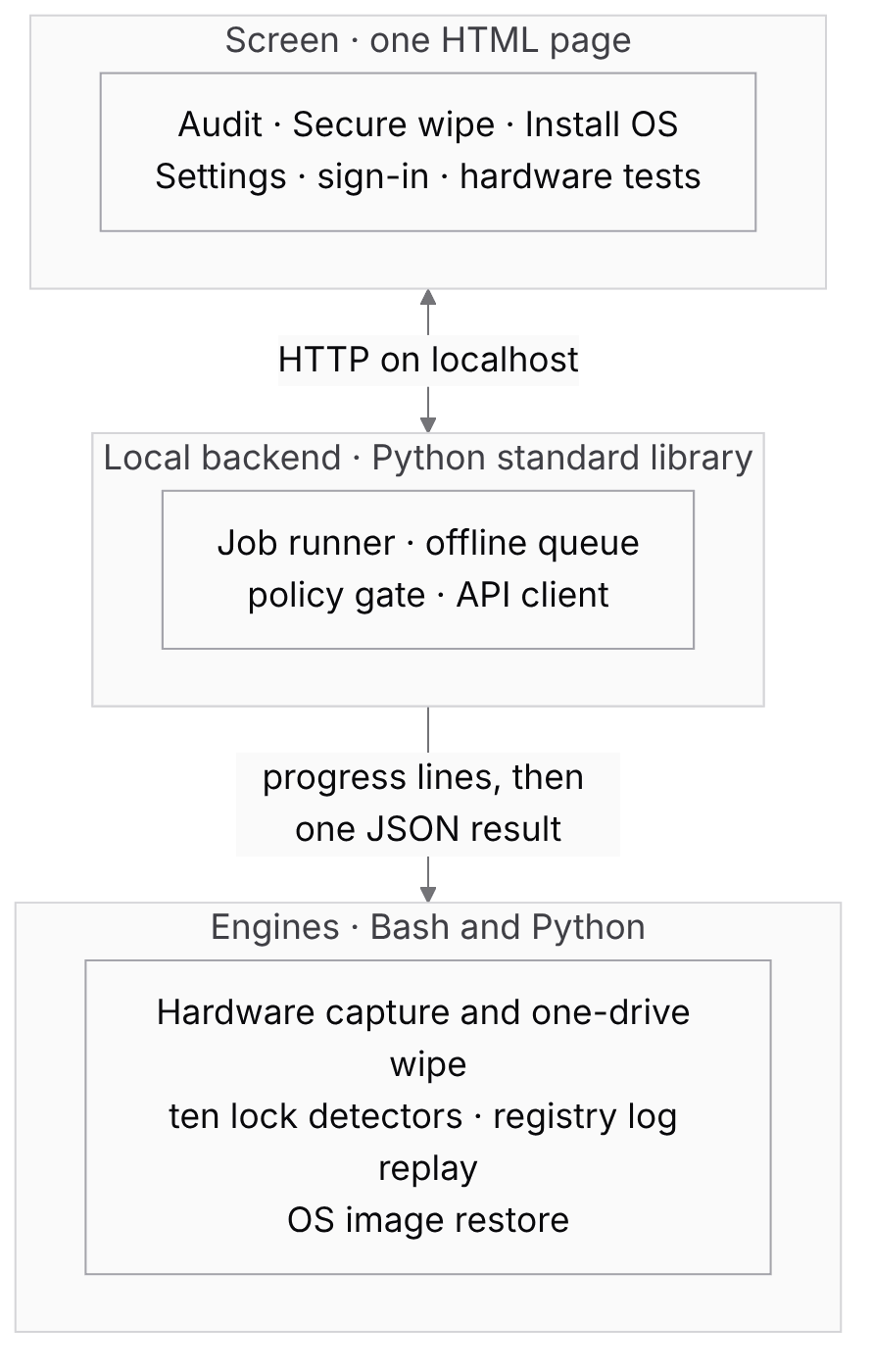
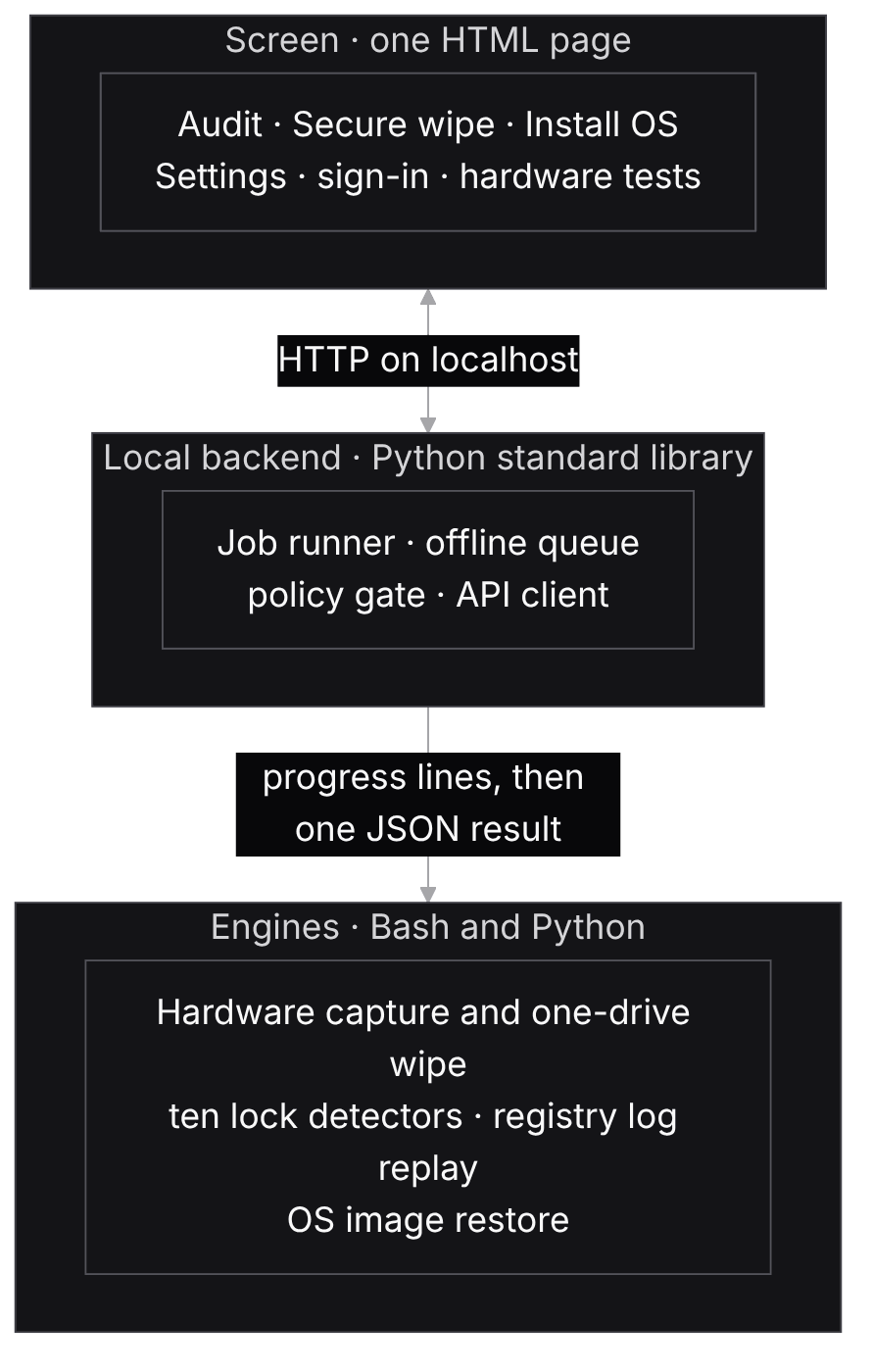
Inside the station there are three layers. The engines that touch hardware are Bash and Python. A small local backend, written with the Python standard library only, runs them as jobs. The screen is a single HTML page in a full-screen browser. The backend knows each engine only through a narrow contract: progress lines, then one final line of JSON with the result. An engine can be replaced without the screen noticing.
One audit, start to finish
An audit is a collection step. It reads the machine and files it. It does not compare serials against a manifest; that reconciliation happens on the platform. The operator chooses an intake audit, which files the machine into a lot, or a general audit, which files it on its own.
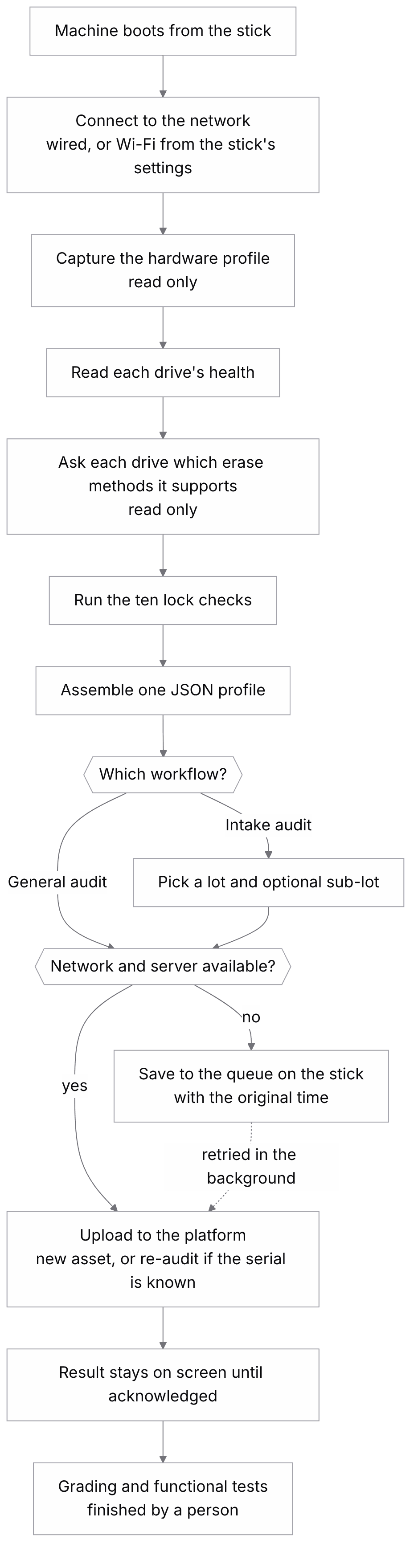
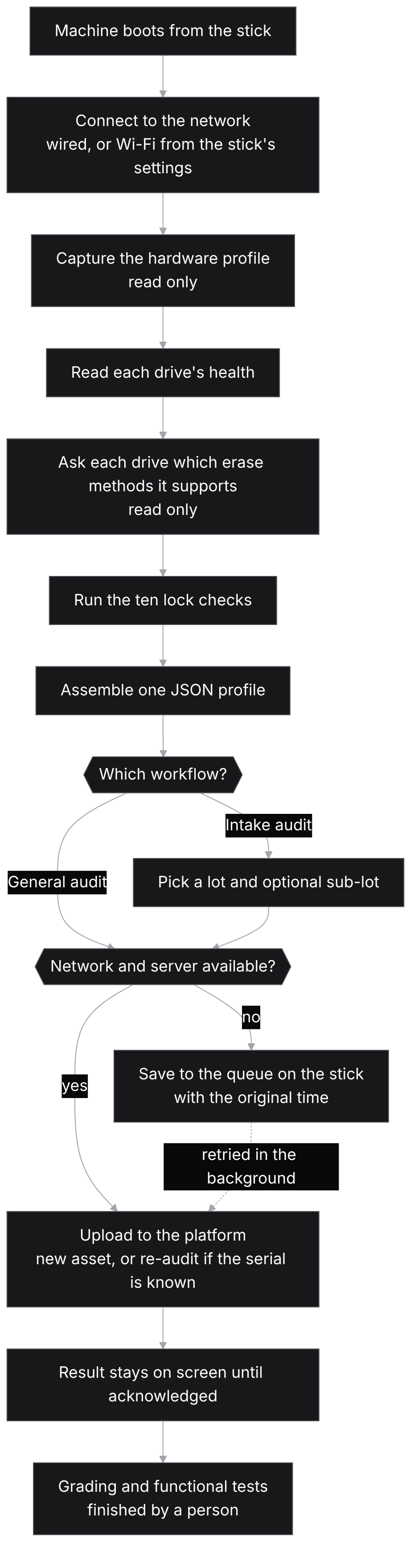
The profile carries the machine's identity, firmware settings, processor, memory, graphics, battery and network adapters, and for each internal drive its model, serial, a health percentage with the reasons behind it, and the erase methods the drive says it supports. A field the station cannot read is left out, not guessed. An empty drive list is never read as "no drives": the profile also records whether the drive scan itself ran.
If there is no network, the audit goes into a queue on the stick and is uploaded later with the time the work actually happened. The queue is written so that a restart, or two uploads running at once, can neither lose a record nor file it twice.
The lock checks
Ten detectors look for anything that would stop a machine being refurbished, resold or redeployed:
| Check | Where the evidence comes from |
|---|---|
| Windows Autopilot | The Windows registry and cached Autopilot files, read offline |
| Intune / MDM enrolment | The registry, counting only enrolments that name a management server |
| Microsoft Entra ID join | The registry, naming the tenant so the owner can be asked to release it |
| Active Directory join | The SECURITY hive, corroborated by Group Policy, Netlogon and cached logons |
| BIOS / UEFI password | The vendor's firmware-attributes interface in Linux |
| Secure Boot and Setup Mode | UEFI variables |
| TPM | The kernel's TPM interface |
| Absolute / Computrace | The ACPI WPBT table, then firmware attributes |
| BitLocker | Volume signatures |
The four Microsoft checks read the Windows registry without starting Windows. The station mounts the Windows partition read-only, copies the registry hives into memory, and first replays the hives' own transaction logs into that copy. Without that step, a laptop shut down with Fast Startup, the default on almost every laptop, can hand over a hive that is missing its latest changes or will not open at all. The previous user's email address sits in the same keys and is never read.
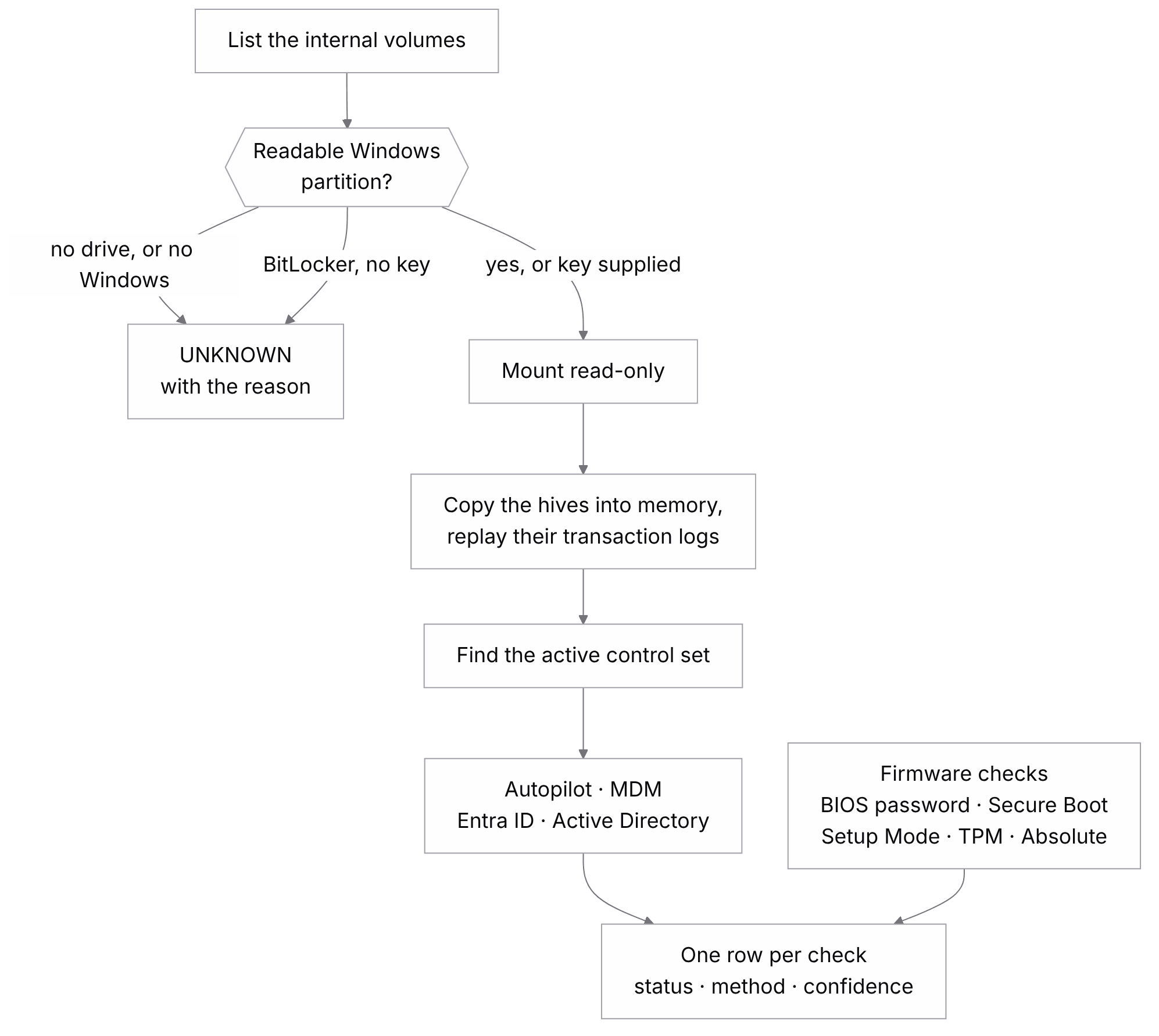
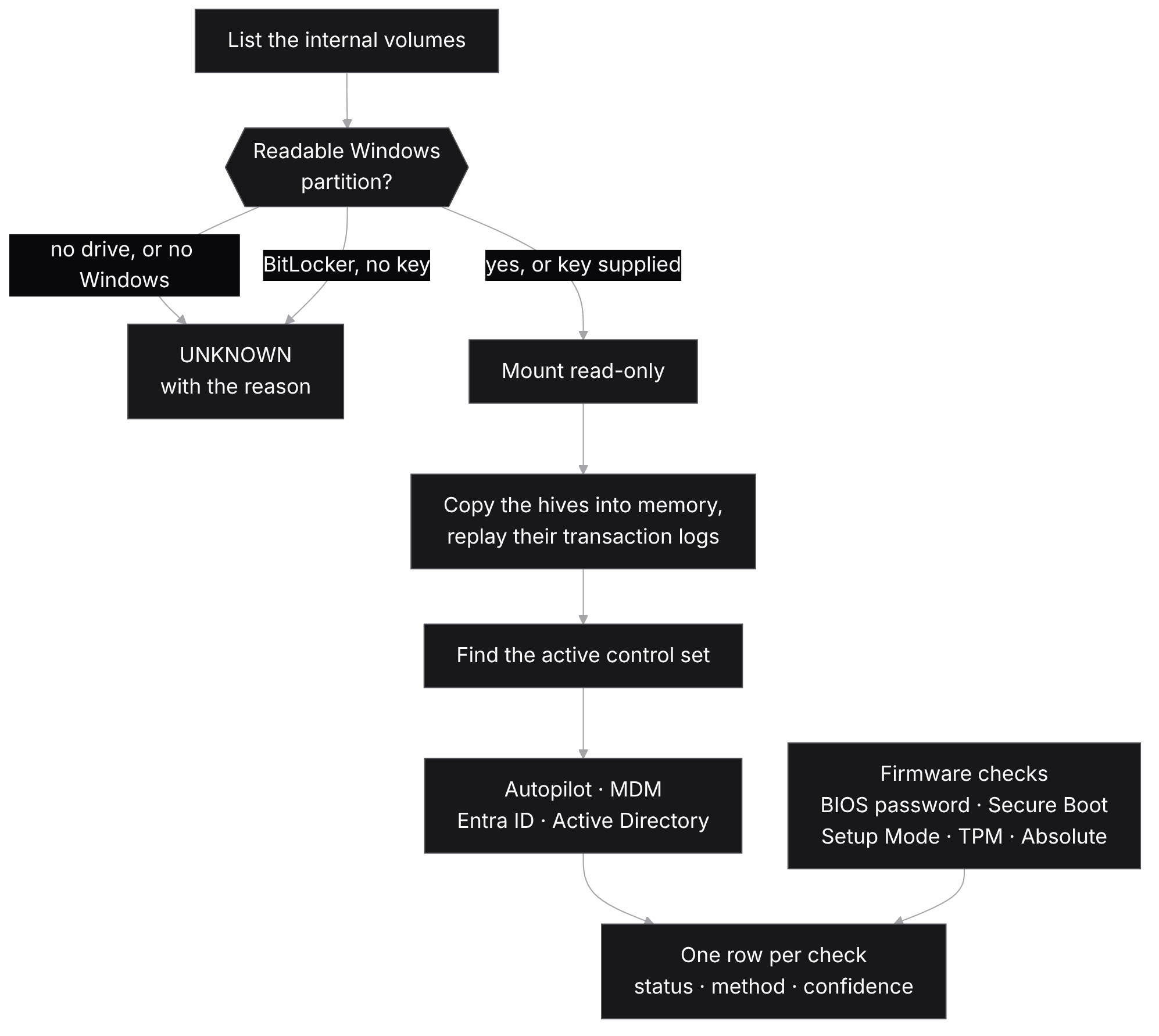
This path explains one of the more interesting findings so far. In one batch of 170 laptops, on 42 machines the boot environment could not see the internal drive at all, so every registry check returned UNKNOWN together and each of those machines came out UNVERIFIED. Why those drives were invisible is a question I have not yet answered.
Each machine then gets one word. The order is deliberate: CLEAR is the only verdict that makes a claim about the machine, so it is the only one that has to be earned.
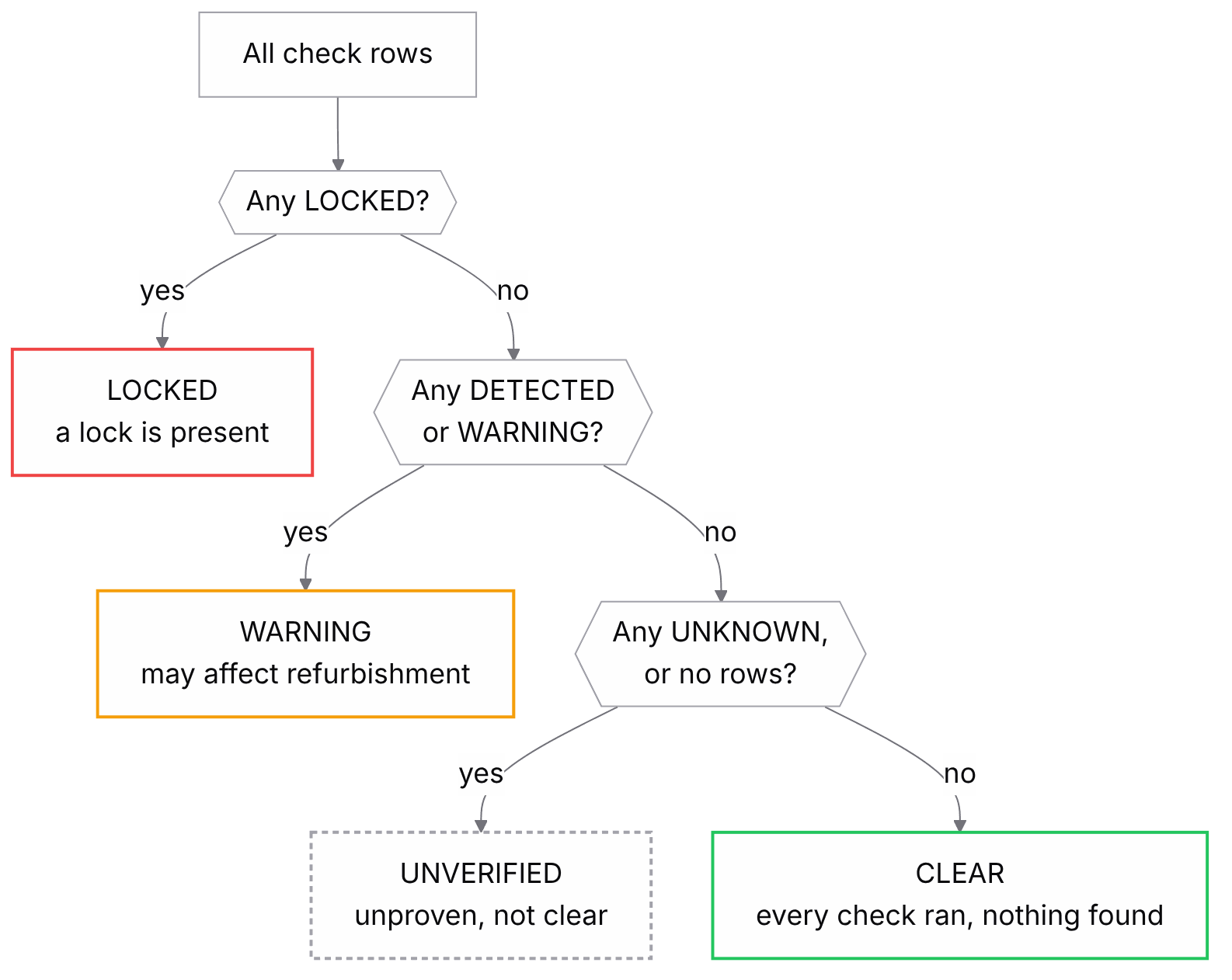
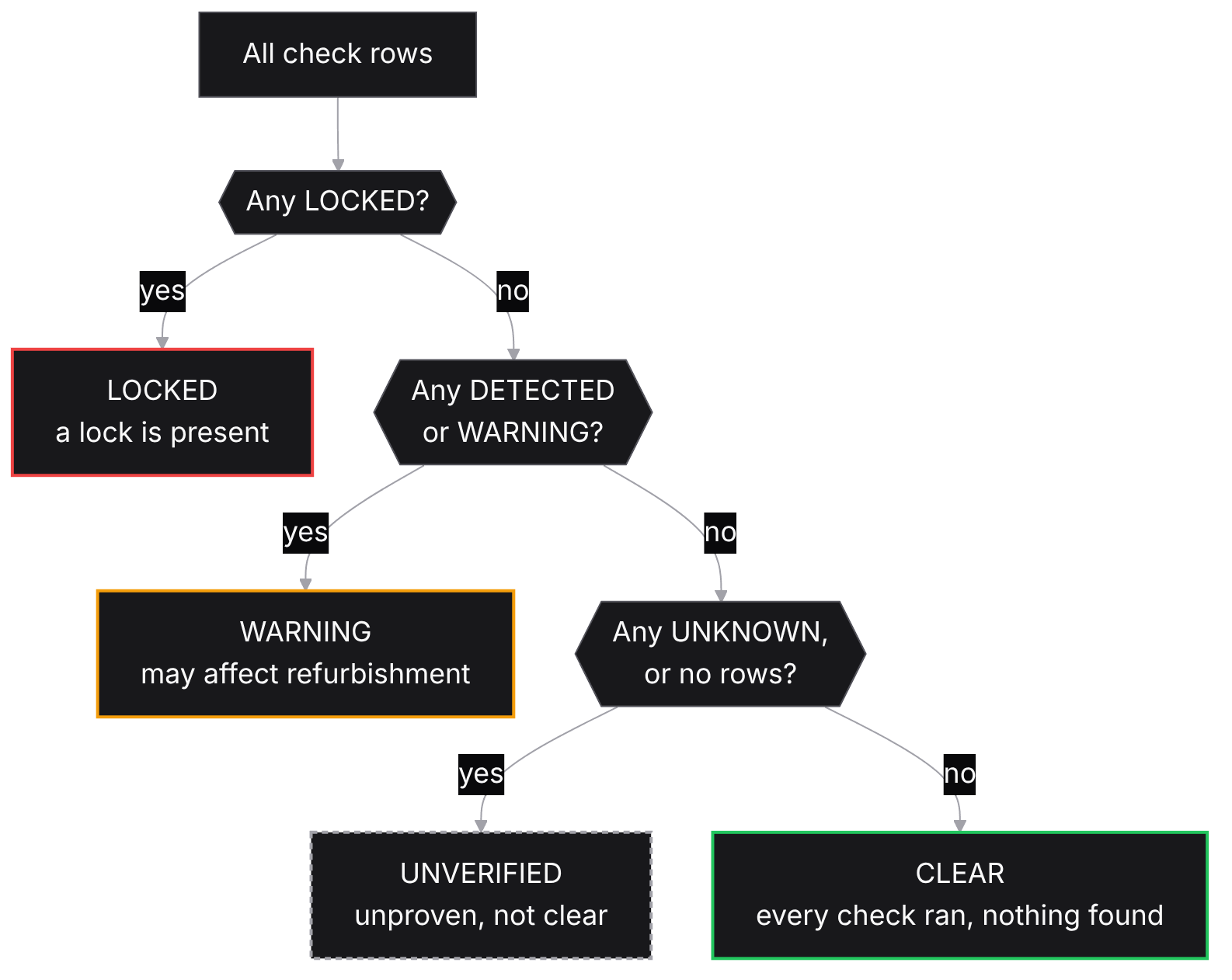
Two safeguards sit in the runner. A detector that crashes becomes an UNKNOWN row instead of disappearing, and a detector that finishes without filing any answer is recorded as UNKNOWN as well. Each detector also has test fixtures that make its LOCKED and DETECTED branches fire, because those are exactly the branches an unlocked bench machine can never exercise.
Autopilot is the hard limit here. Its registration lives in Microsoft's cloud, keyed to the hardware, not on the disk. A wiped machine carries no local trace and can still be claimed by its organisation at its next online setup. So for a clean machine the honest answer is UNKNOWN, and certainty needs either an online setup test or proof of deregistration from the seller.
Wiping a drive
Wiping is done from the station screen only, and each drive is its own job with its own result and its own record. A machine with one wiped drive and one failed drive can never be filed as one merged result.
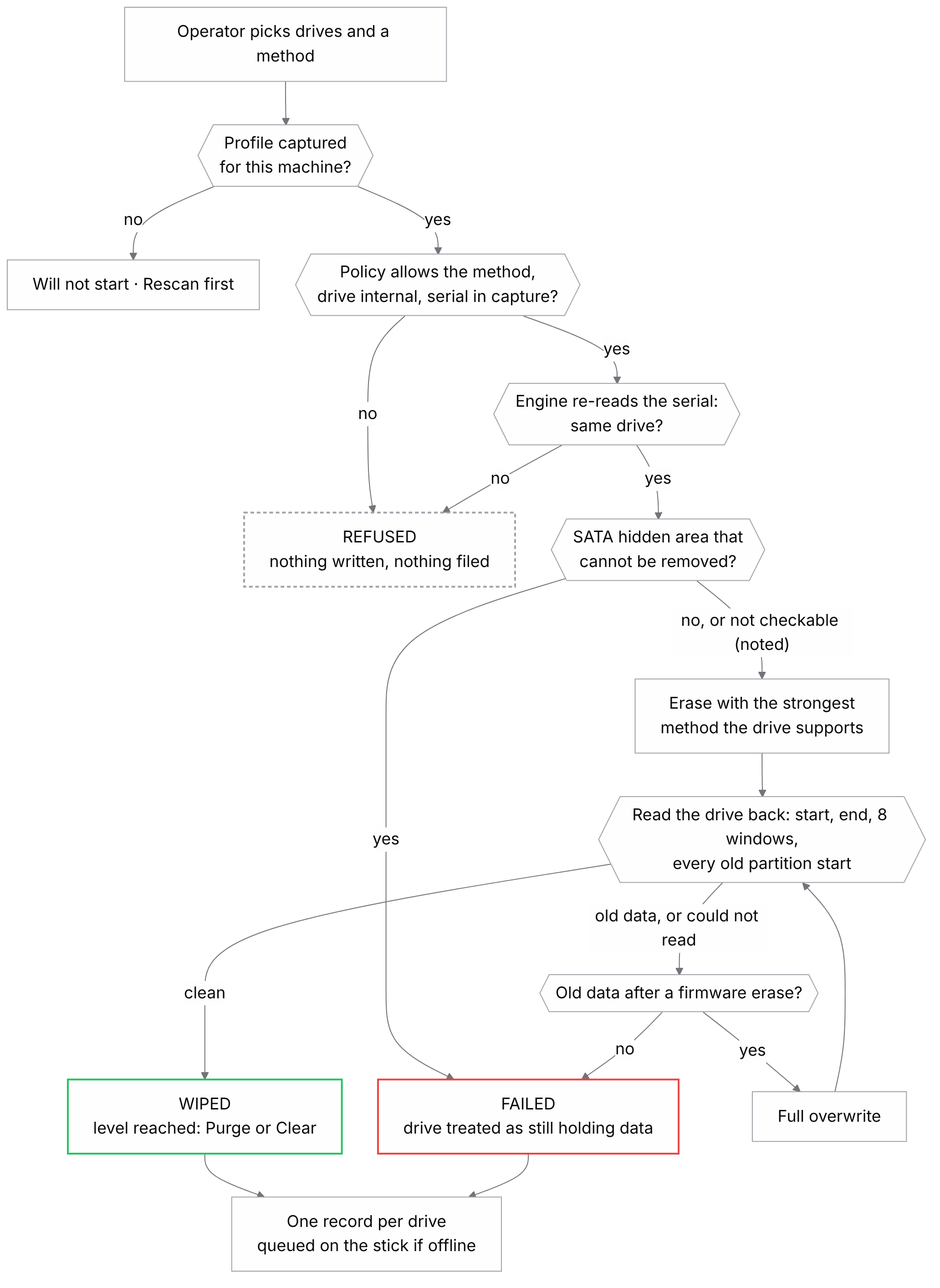
There are exactly three results:
- Wiped: the erase ran and the drive was read back afterwards with none of its old data recognisable. There is no result for "the drive said it worked".
- Failed: the erase did not complete, the read-back found old data, or the read-back could not be done. An erase that nobody could check is not recorded as a wipe.
- Refused: nothing was written to the drive, so nothing is filed.
The method is the strongest the drive supports: on NVMe a sanitize crypto erase, then a block erase, then a format, then an overwrite; on SATA an enhanced secure erase, then a normal one, then an overwrite. Many laptops freeze a SATA drive's security feature at power-on, and a frozen drive refuses the secure erase, so the station now shows each drive's security state and can unfreeze it first (see Drive security and Unfreeze below). Each record states the level reached under NIST SP 800-88, Purge or Clear, as read back, not as promised. Before any of it, the station checks the drive and method against the sanitisation policy the platform publishes. The same decision runs on the platform in TypeScript, and both copies run one shared set of test cases so they cannot drift apart unnoticed.
Not every method has been proved on real hardware yet. Several NVMe modes and the eMMC overwrite have no recorded bench test, and the certificates say so as a limitation instead of staying quiet about it.
What the operator sees
Everything above happens behind one full-screen page. The operator never opens a terminal: audit, wipe, verify, test and loading an operating system all start from here, and every action is recorded against the machine and the person at the bench. The pictures below come from the station's own preview mode, which runs the real screen against example answers, so the machine and its results are examples rather than a real audit. They were taken from version 1.3.0, the current one.
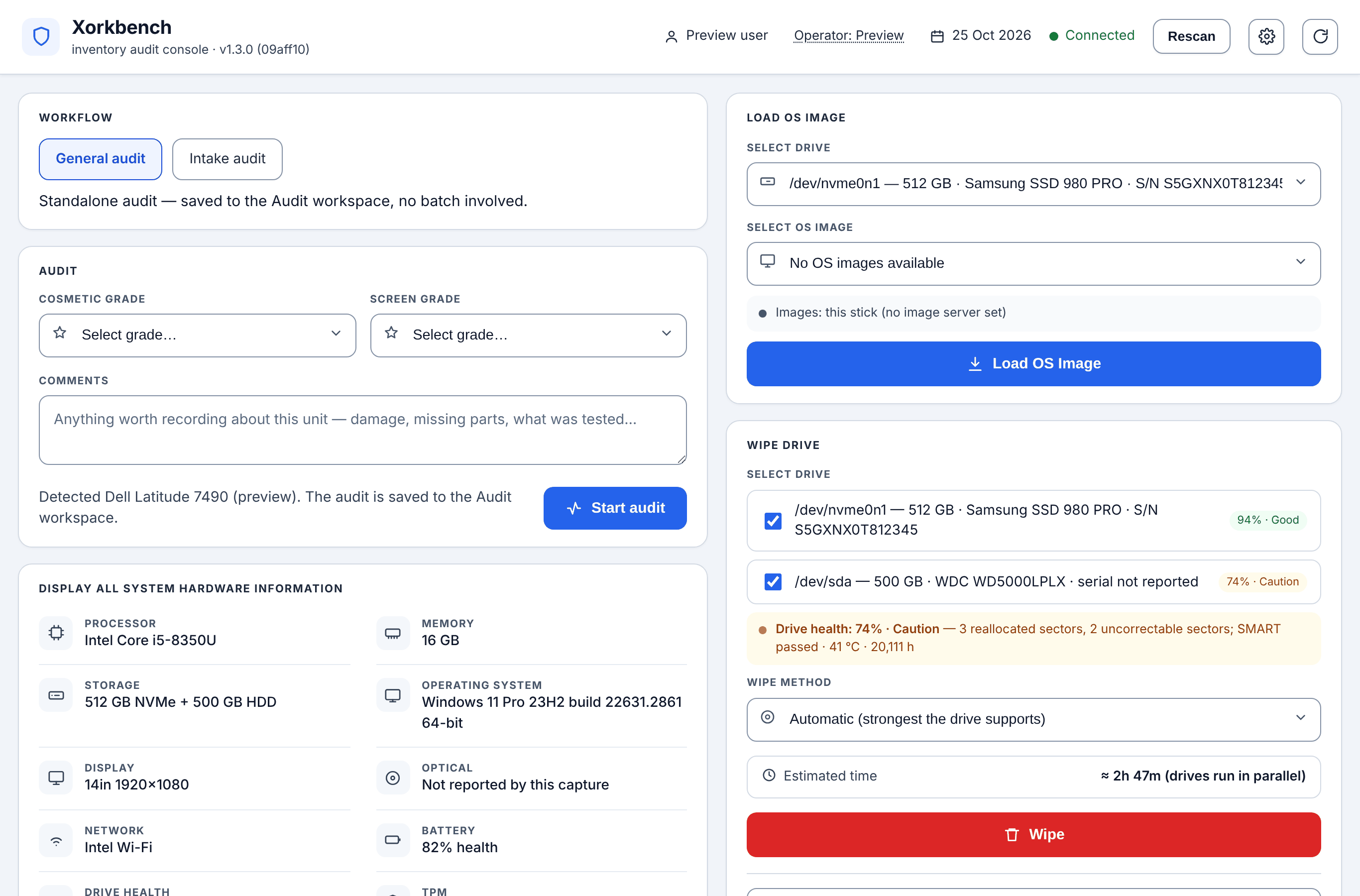
| Part of the screen | What it does |
|---|---|
| Top bar | Shows the version of the software on the stick, the signed-in account and the Operator, the person at the bench, whose name goes on every audit and wipe. A connection indicator turns from Connected to No network or Server unreachable on its own. Rescan reads the hardware again. |
| Workflow | General audit files the machine on its own; Intake audit files it into a batch, for receiving a delivery. |
| Audit | Cosmetic and screen grades and comments, then Start audit, which files the hardware profile, the lock checks, the grades and the test results. |
| Hardware information | What was read from the machine, including a health percentage for every drive with the reasons behind it. |
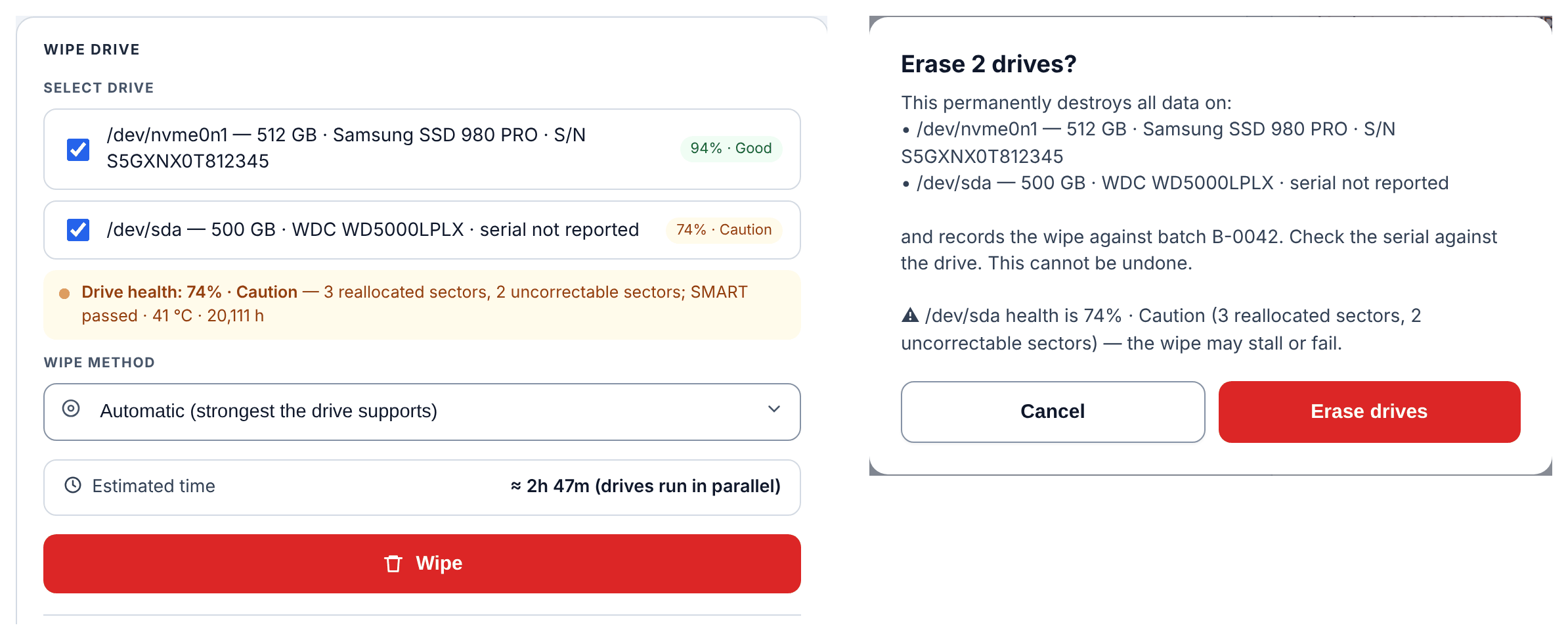
| Wipe drive | Internal drives only, the method, an estimated time, then a confirmation that lists every drive by serial before anything is erased. |
| Drive security | Whether each drive is frozen, locked or ready, and which erase it allows. A frozen drive gets an Unfreeze button. |
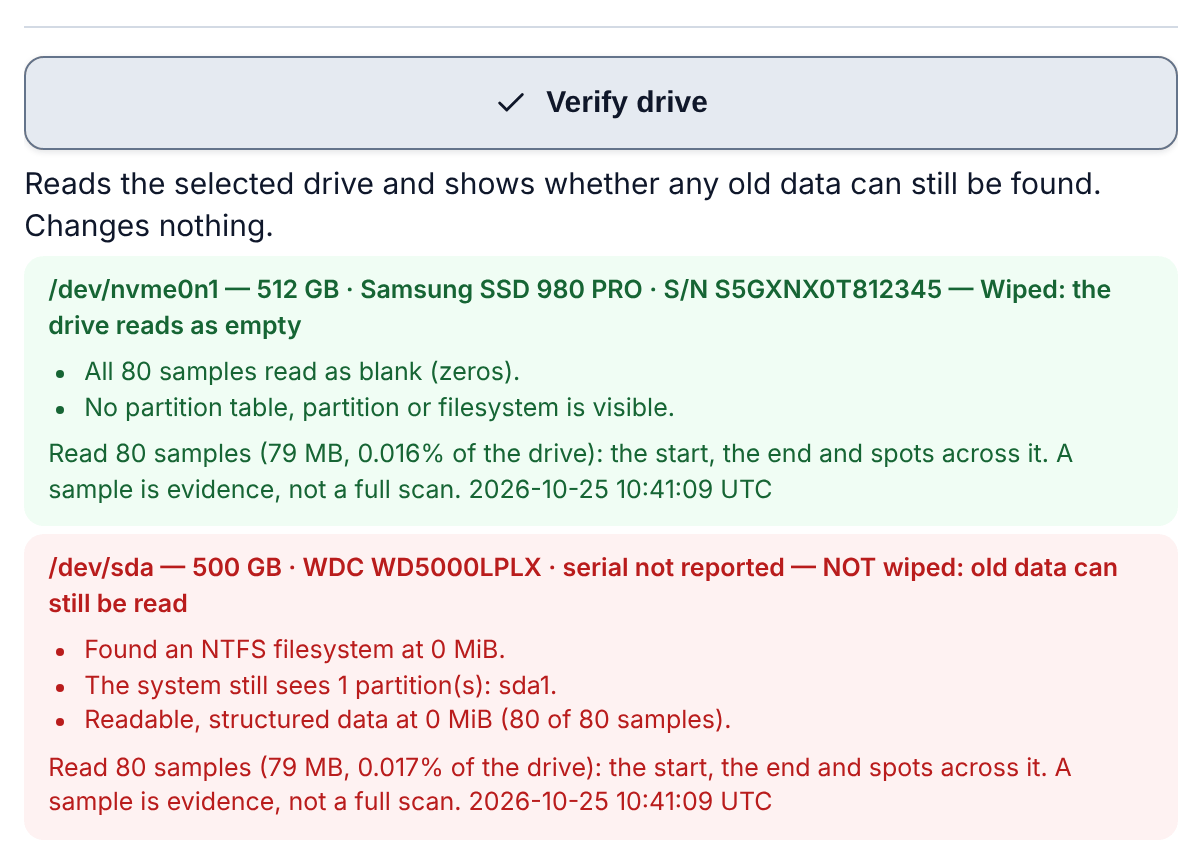
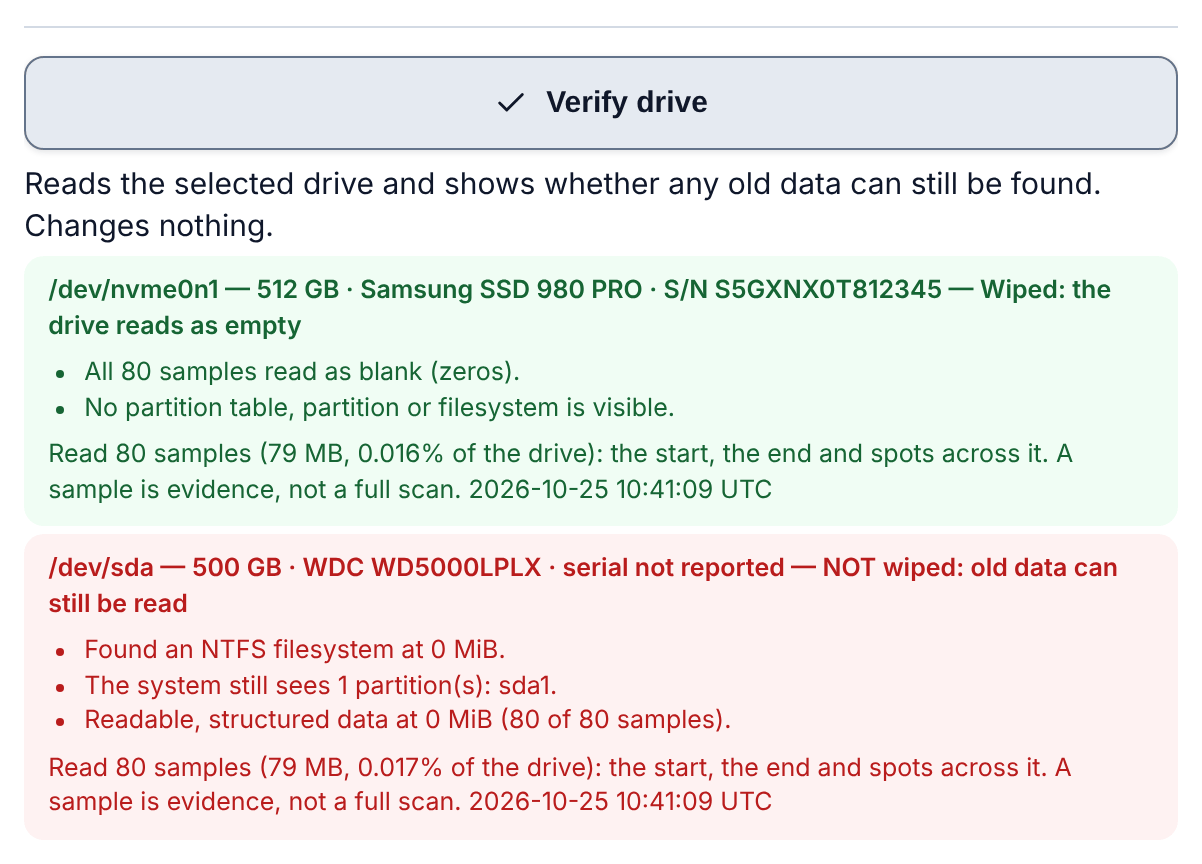
| Verify drive | A separate read-only check that shows whether any old data can still be found on a drive. |
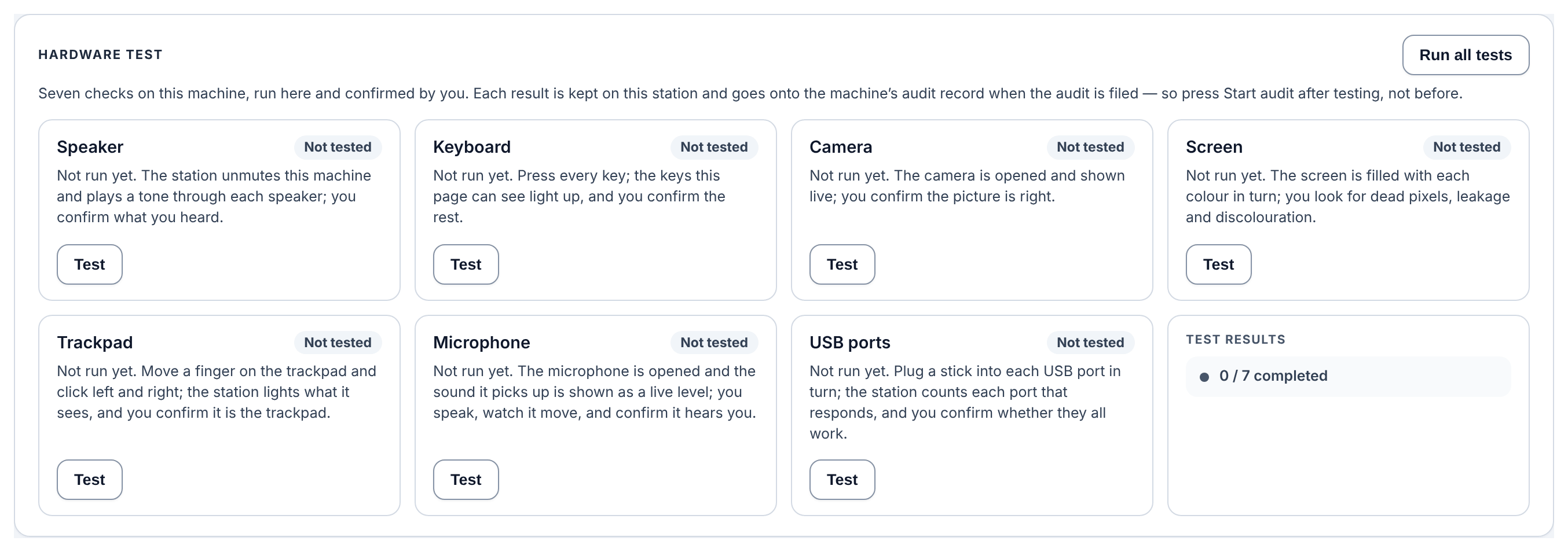
| Hardware test | Seven guided tests: speaker, keyboard, camera, screen, trackpad, microphone and USB ports. |
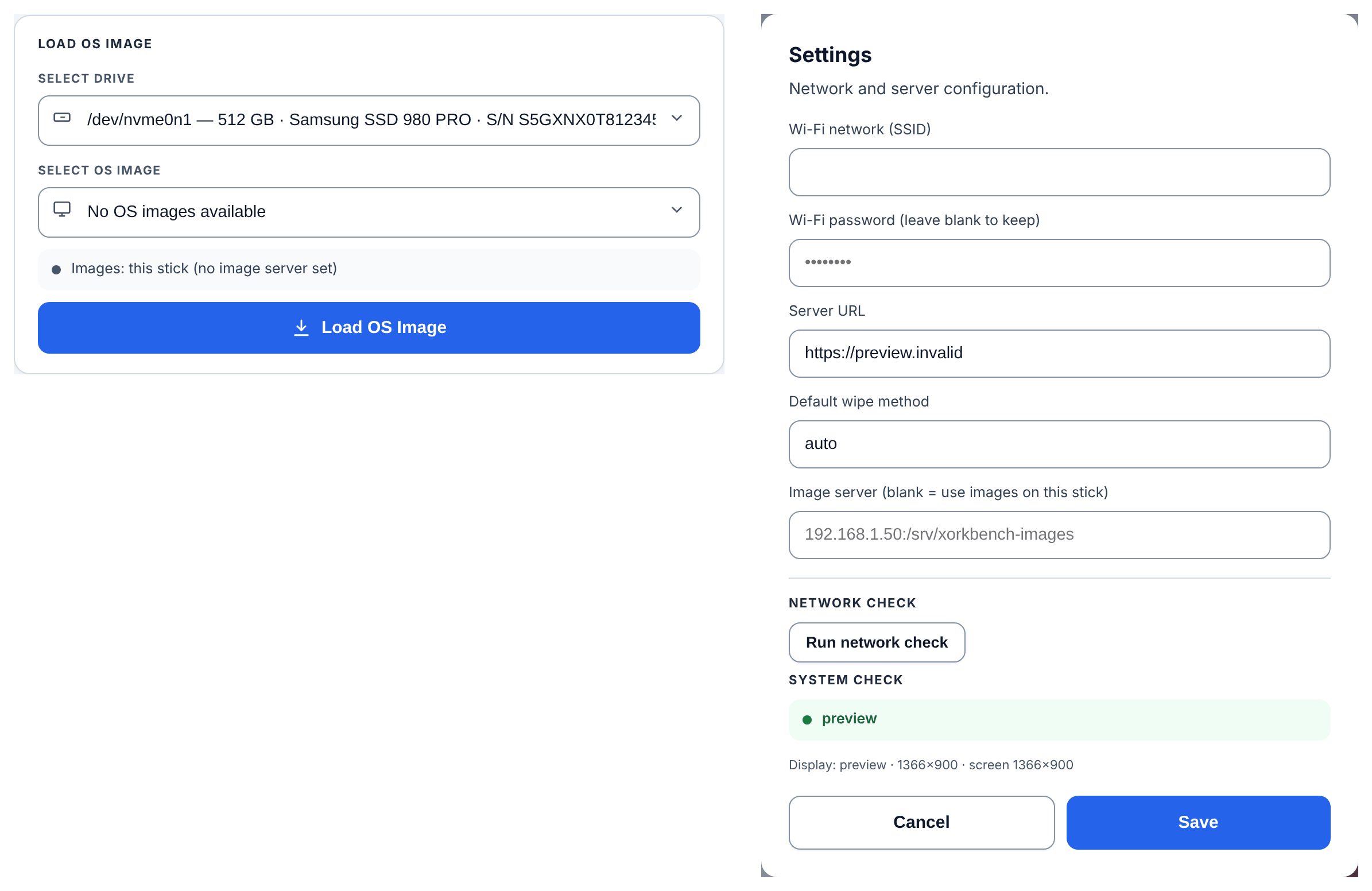
| Load OS image | Restores a ready-made operating system image onto a wiped drive. Built, not yet validated on real hardware. |
| Settings | Wi-Fi, the server address, the default wipe method and an optional image server. |
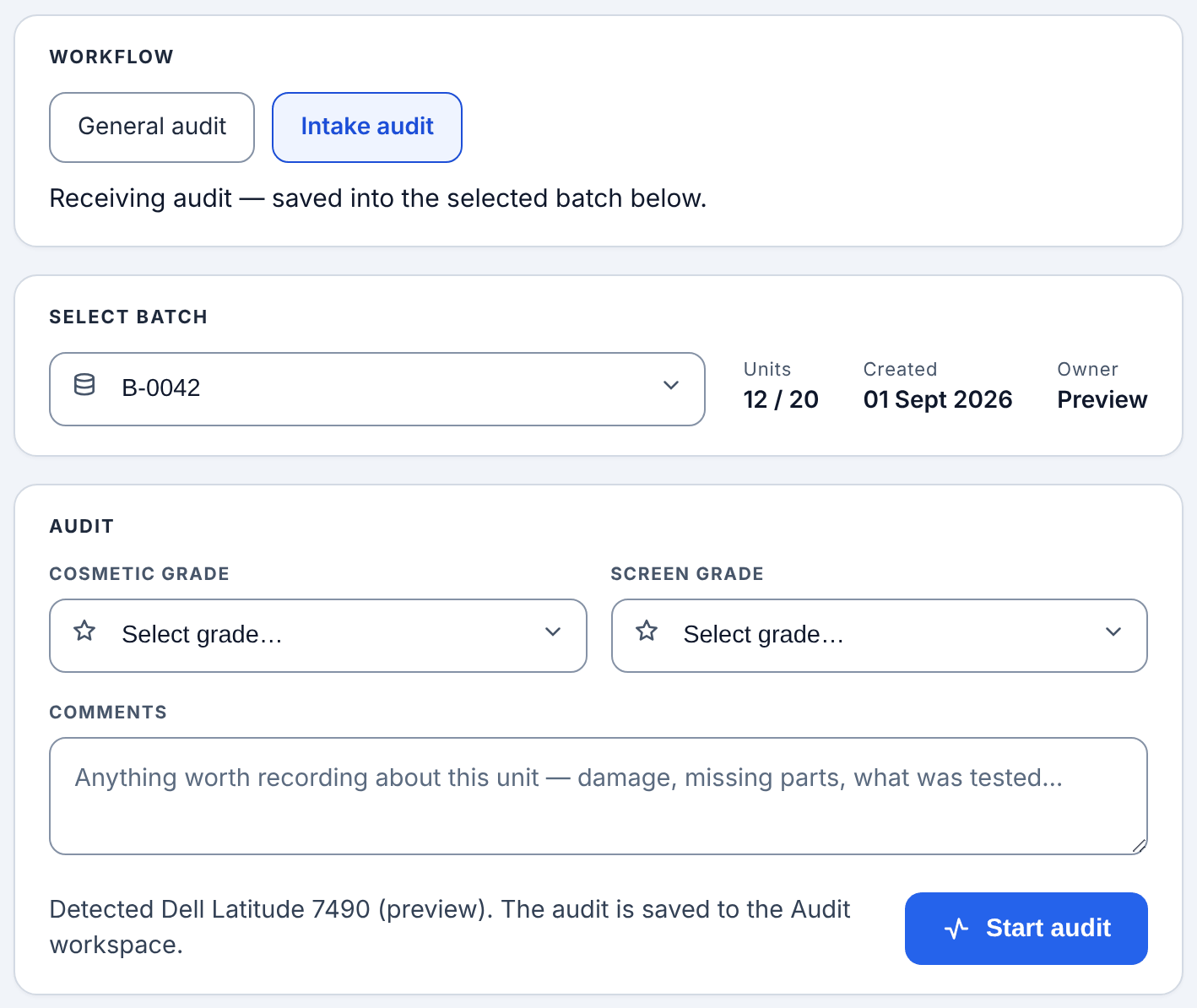
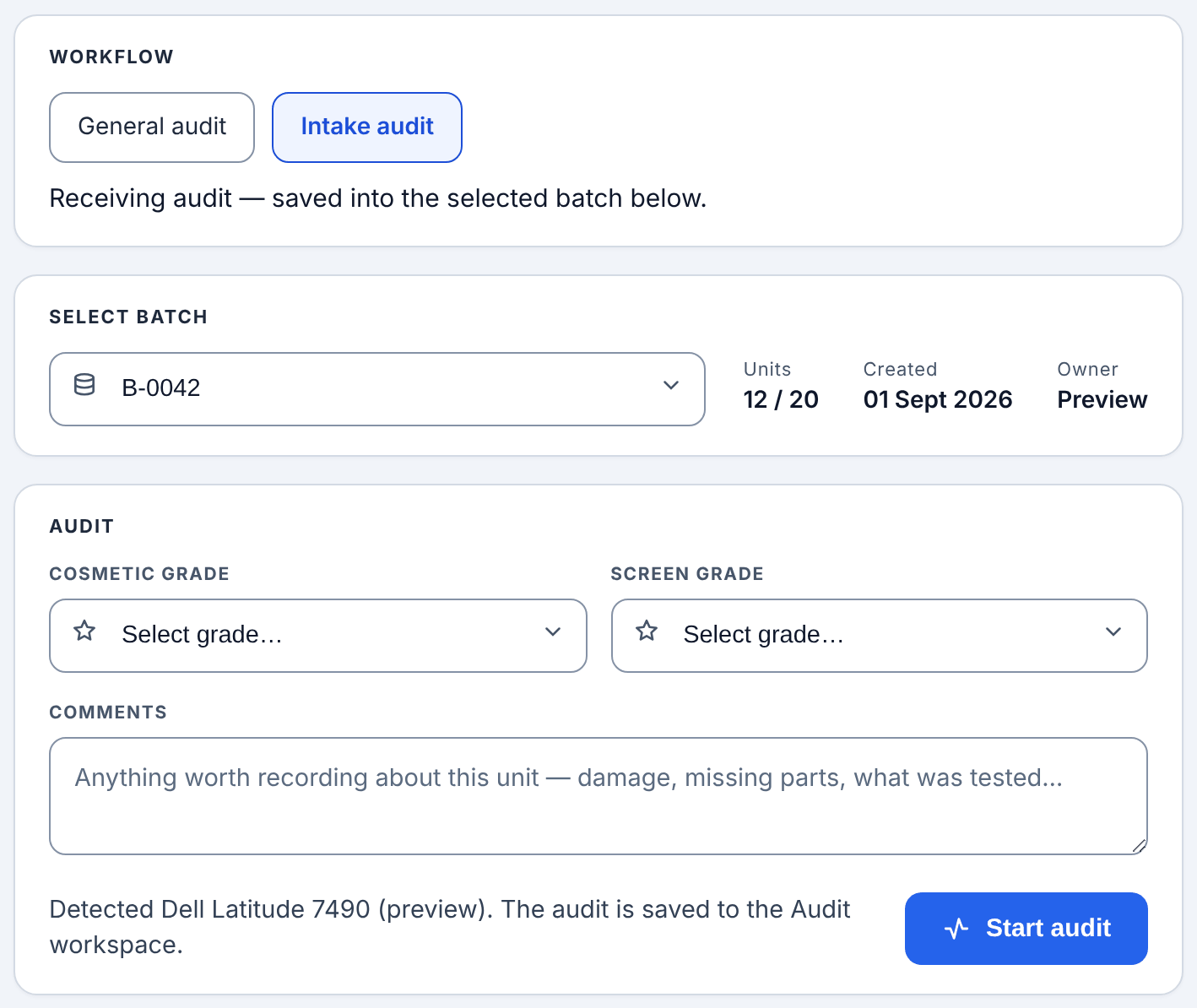
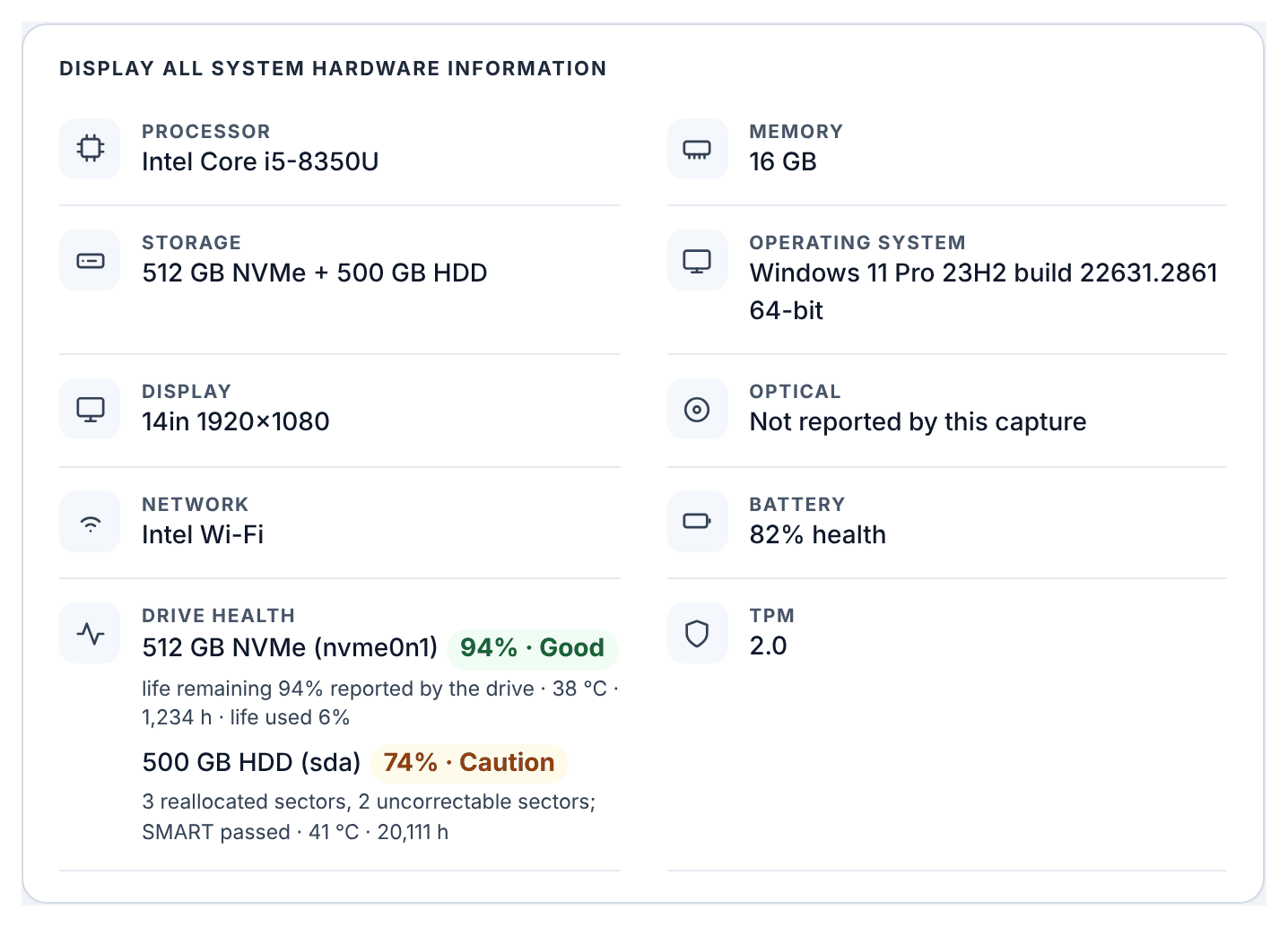
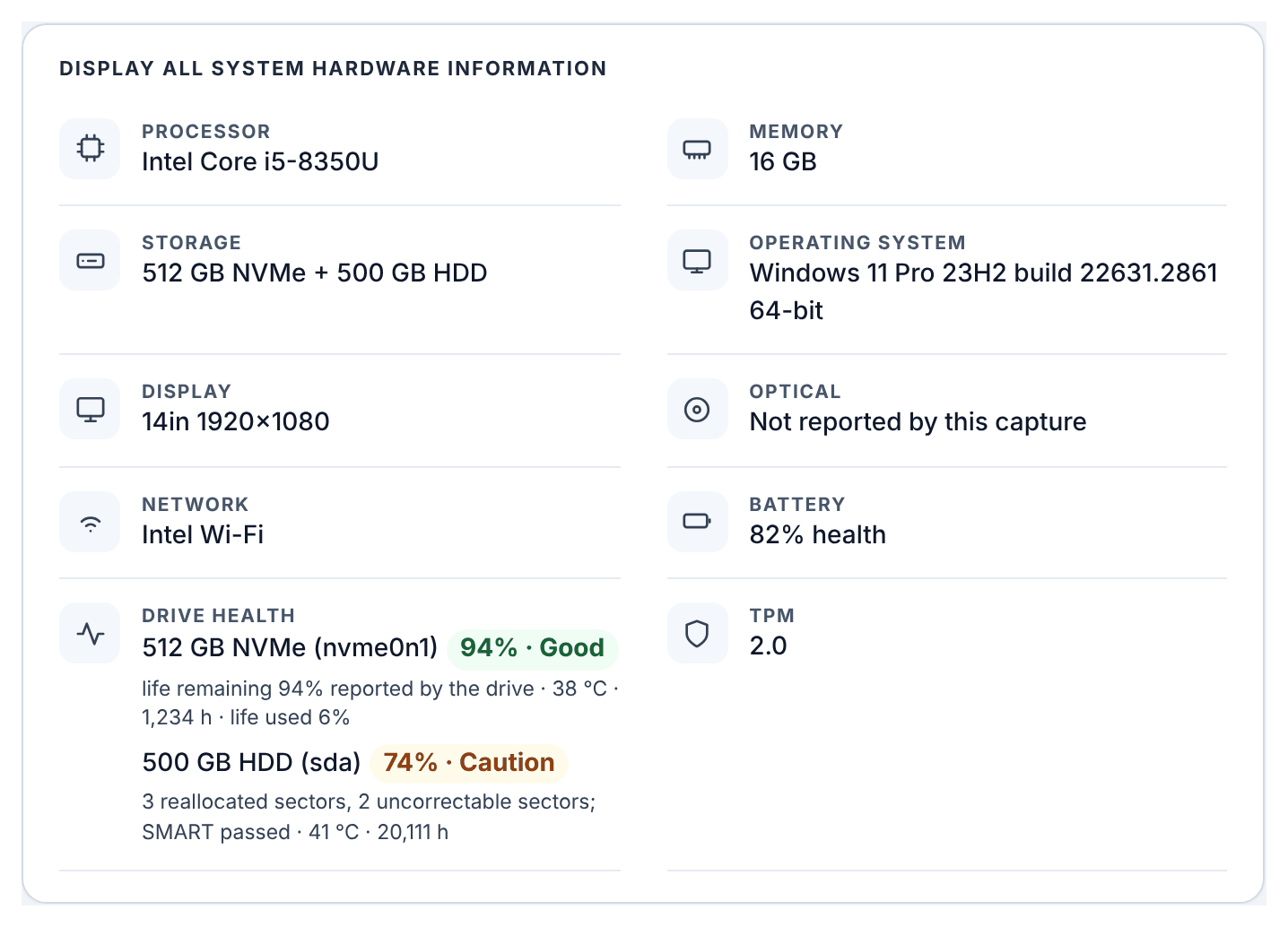
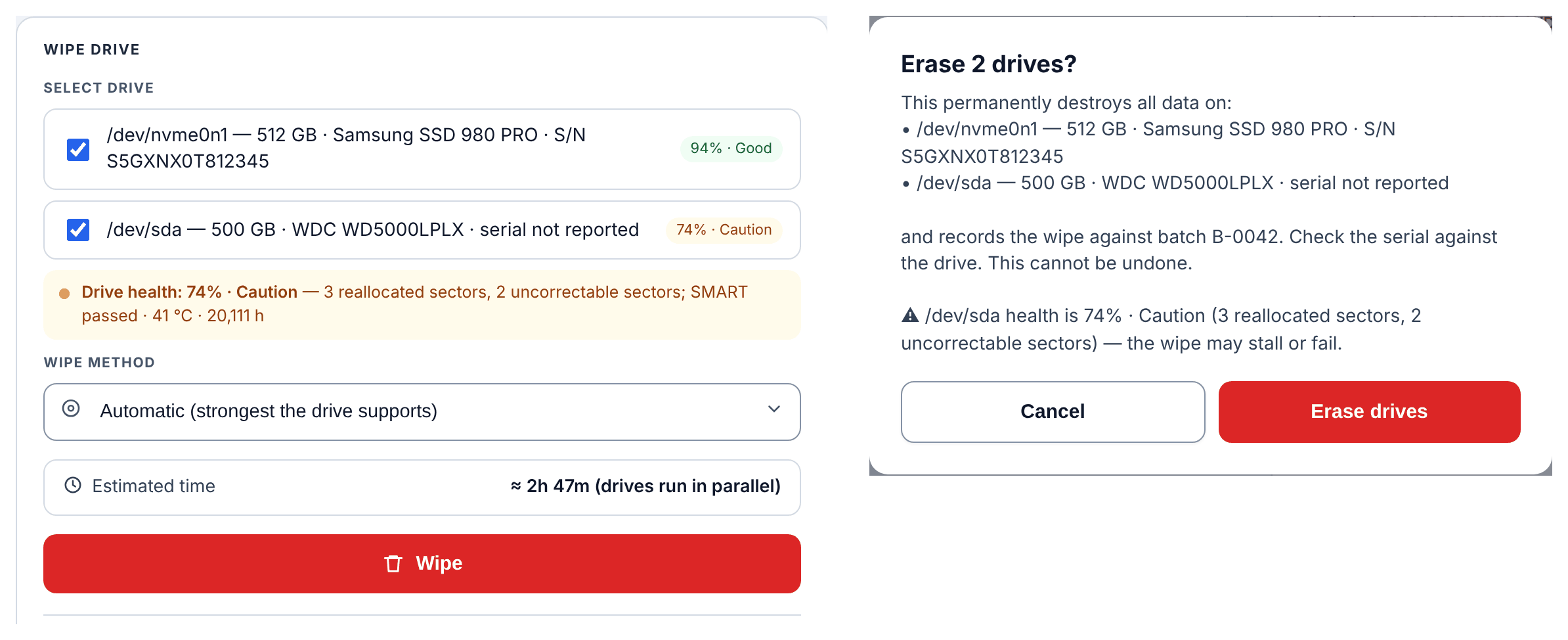
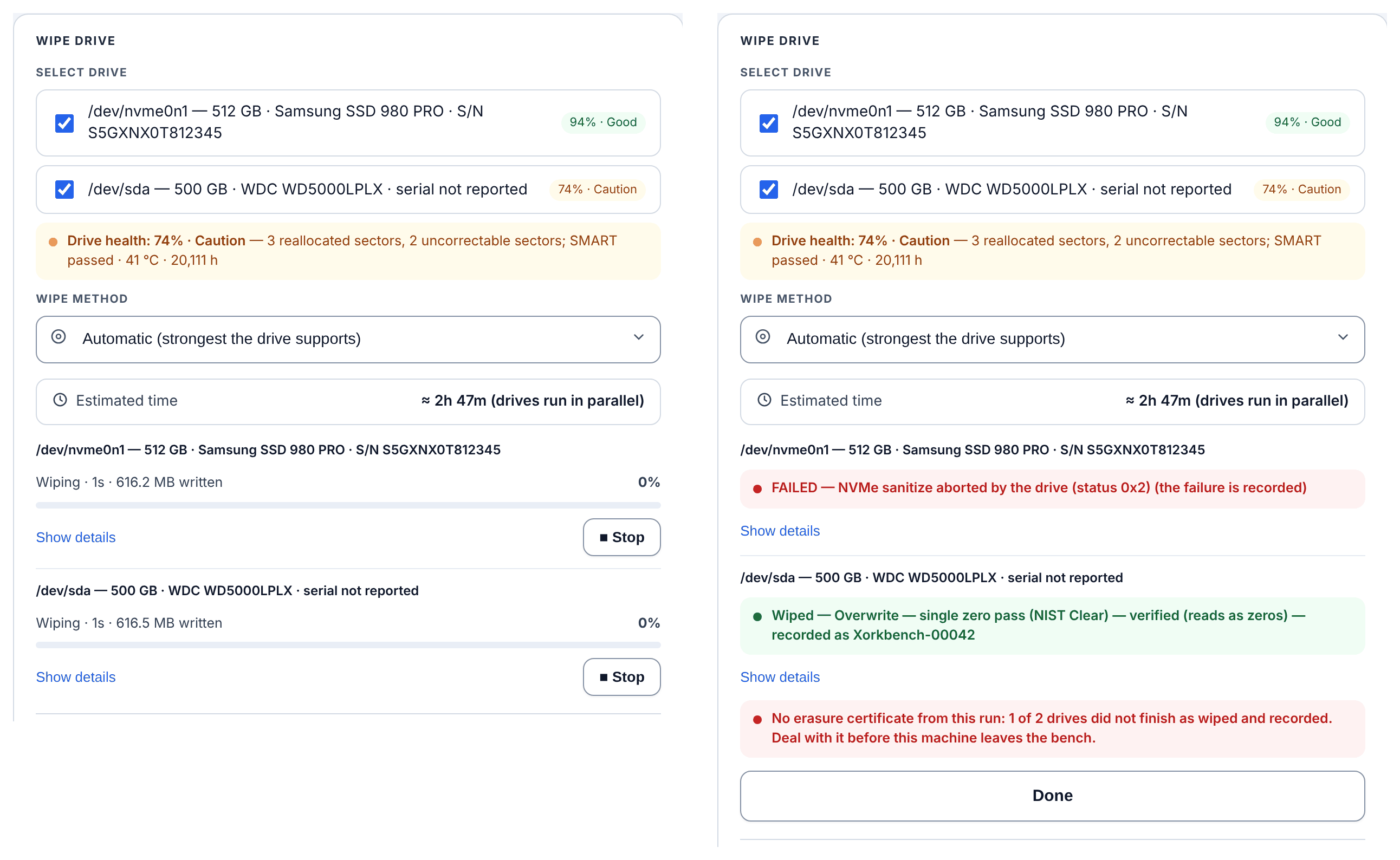
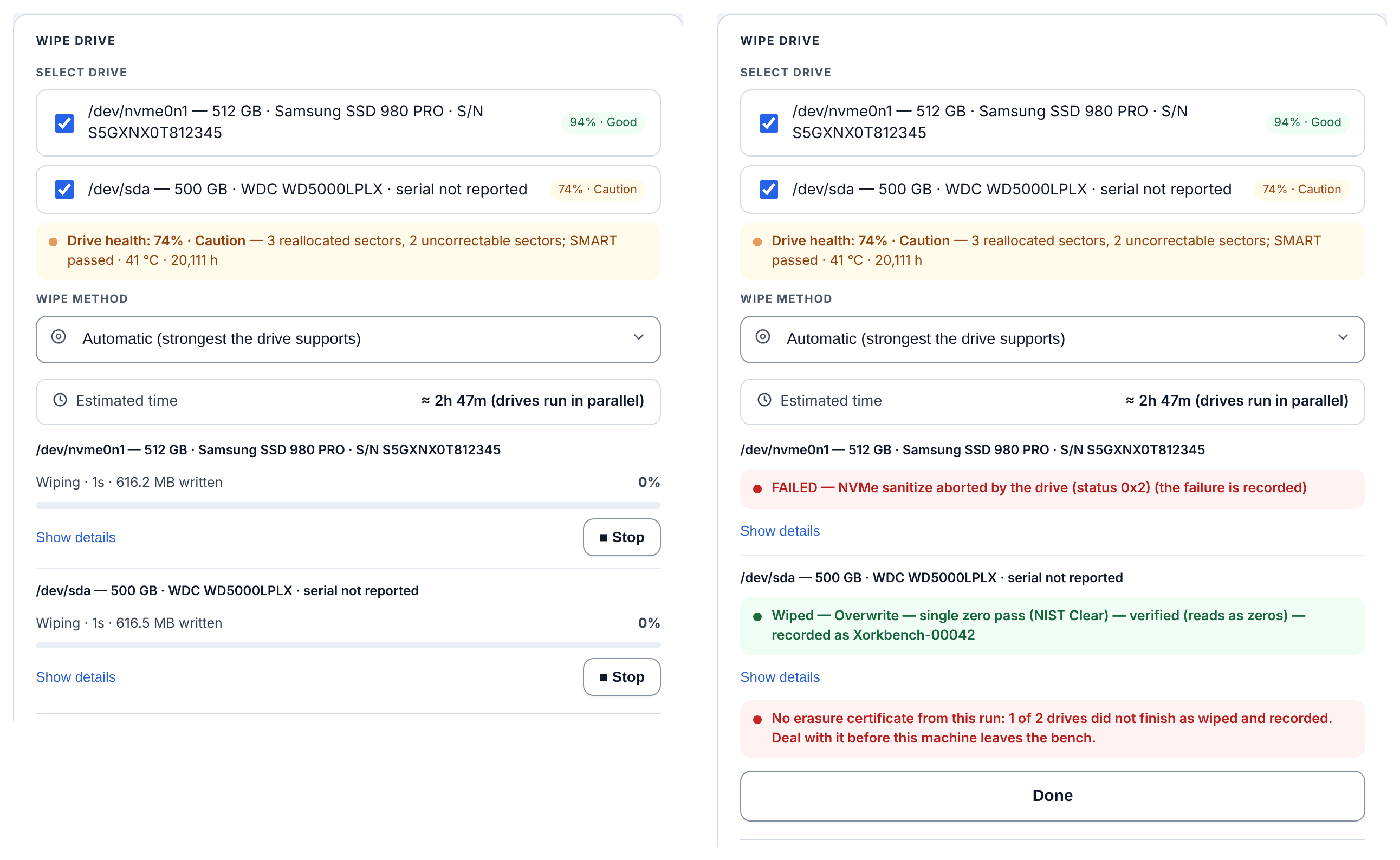
A wipe is confirmed before anything is written, runs as one job per drive with its own Stop button, and ends with one result per drive. In the example below one drive failed, so the screen says plainly that no erasure certificate can be issued and the machine should not leave the bench.
Verify drive is the newest part of the screen. It is a second, independent look at a drive that never writes to it: it reads the start and end of the drive, where partition tables and filesystems live, plus 48 spots at random across it, and asks whether a partition or filesystem is still visible. Before it looks, it asks the system to read the drive's partition table again: without that, a drive wiped moments earlier could still show its old partitions from memory and be called not wiped when it was empty. That was found and fixed in version 1.1.1. The answer is wiped (it reads as empty), unreadable (random noise, what a cryptographic erase leaves), not wiped (old data can still be read, with what and where), check by hand, or could not check. It also says how much of the drive it sampled, because a sample is evidence, not a full scan.
Drive security and Unfreeze
Many laptops freeze a SATA drive's security feature when they power on. A frozen drive refuses the ATA secure erase, its own built-in erase, so the station used to fall back to overwriting it, which is slower and on a solid-state drive weaker. The operator could not see that a drive was frozen, and could not change it.
The wipe card now reads every drive's own security state as soon as the drive appears, and again on Check drive security. It shows five flags (supported, password set, locked, frozen, enhanced erase), each as yes, no or not known, because a flag the drive did not report is never taken as no. Under them it names the first erase technique the drive will allow. Reading the state changes nothing.
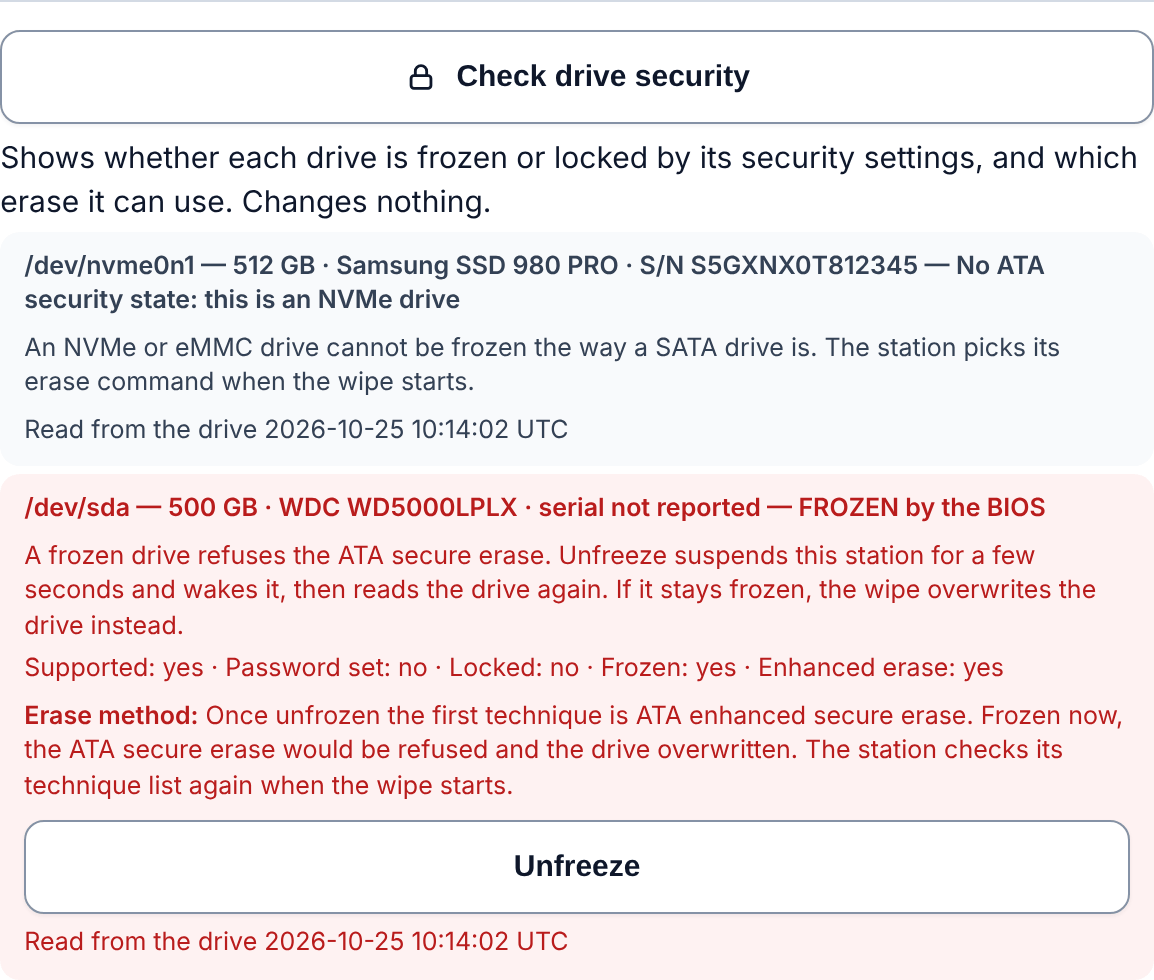
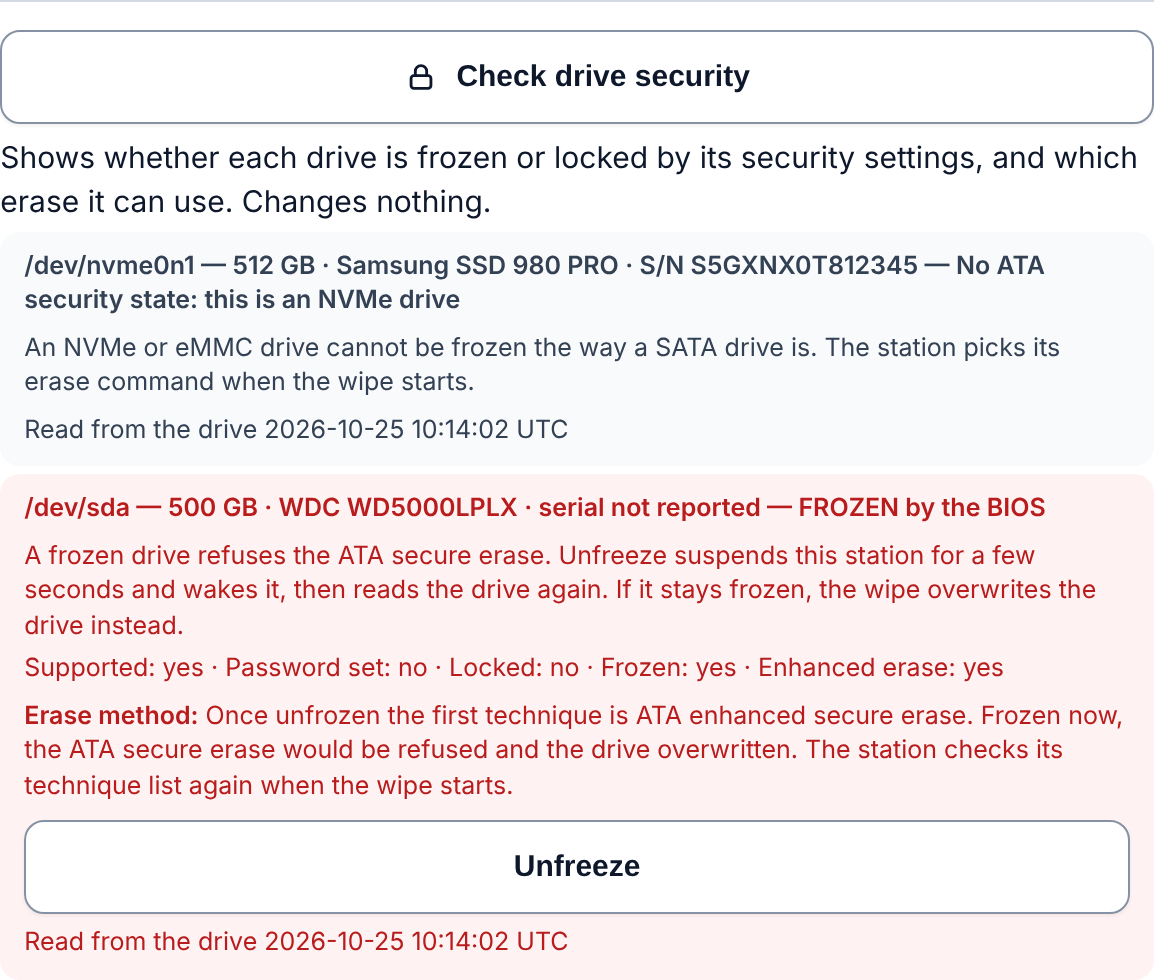
Only a frozen drive that is not locked gets an Unfreeze button. Unfreeze suspends the whole station for about ten seconds and wakes it, which on many machines releases the freeze. It is refused while a wipe, an install or a hardware read is running, and, when operator sign-in is turned on, while nobody is signed in, because the attempt is recorded under the operator who pressed it.
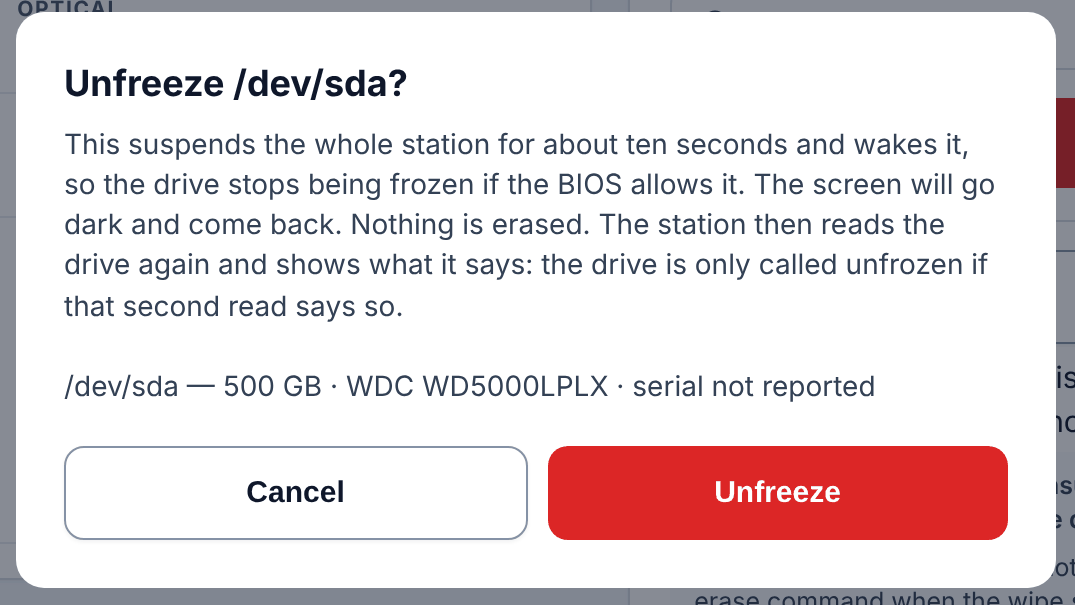
The rule that shaped this part is the same one as the rest of the station: never believe the procedure, believe a second read. After the station wakes it reads the drive again, and the outcome comes only from that read: unfrozen, still frozen, could not be confirmed, or not attempted. The screen also reads the drive independently, and if the two disagree the attempt is recorded as unconfirmed, not unfrozen. A laptop can wake from suspend and be frozen again, so a procedure that merely ran proves nothing.
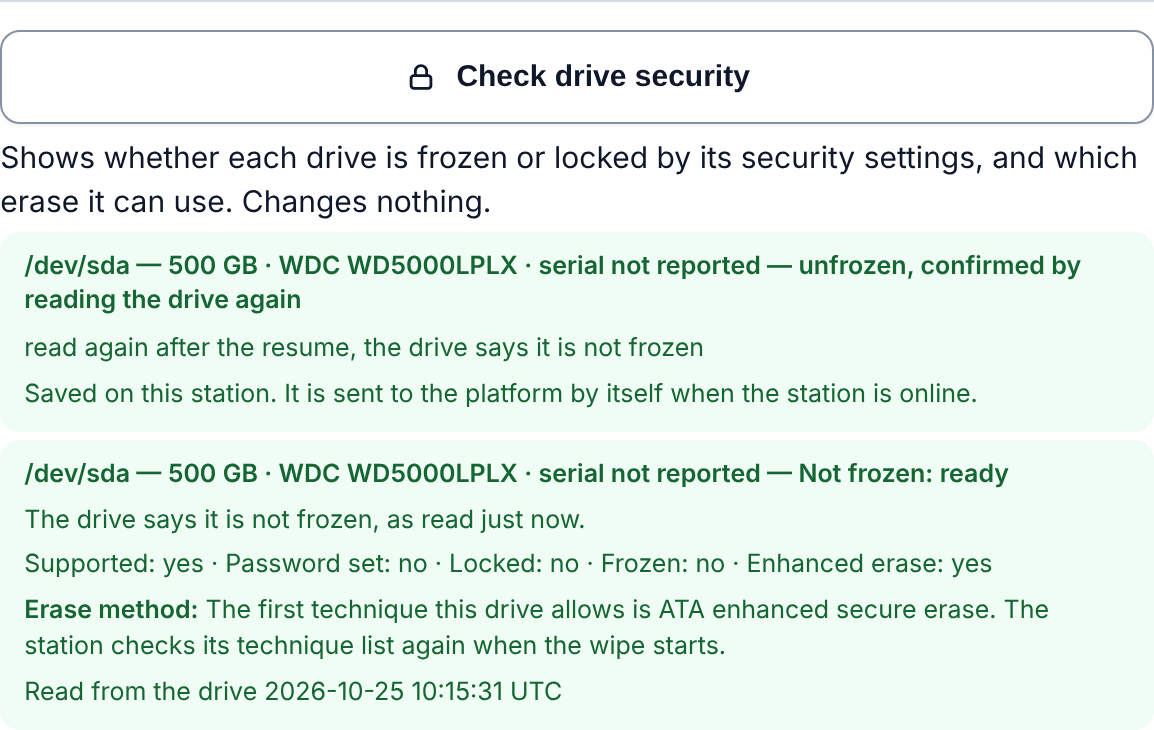
Every attempt is written first to a log on the stick, and then filed on the platform (below). On the bench, on one laptop and one sacrificial drive, the screen and the drive's own report agreed before and after, and the wipe that followed ran as the drive's ATA enhanced secure erase and read back as zeros.
The platform
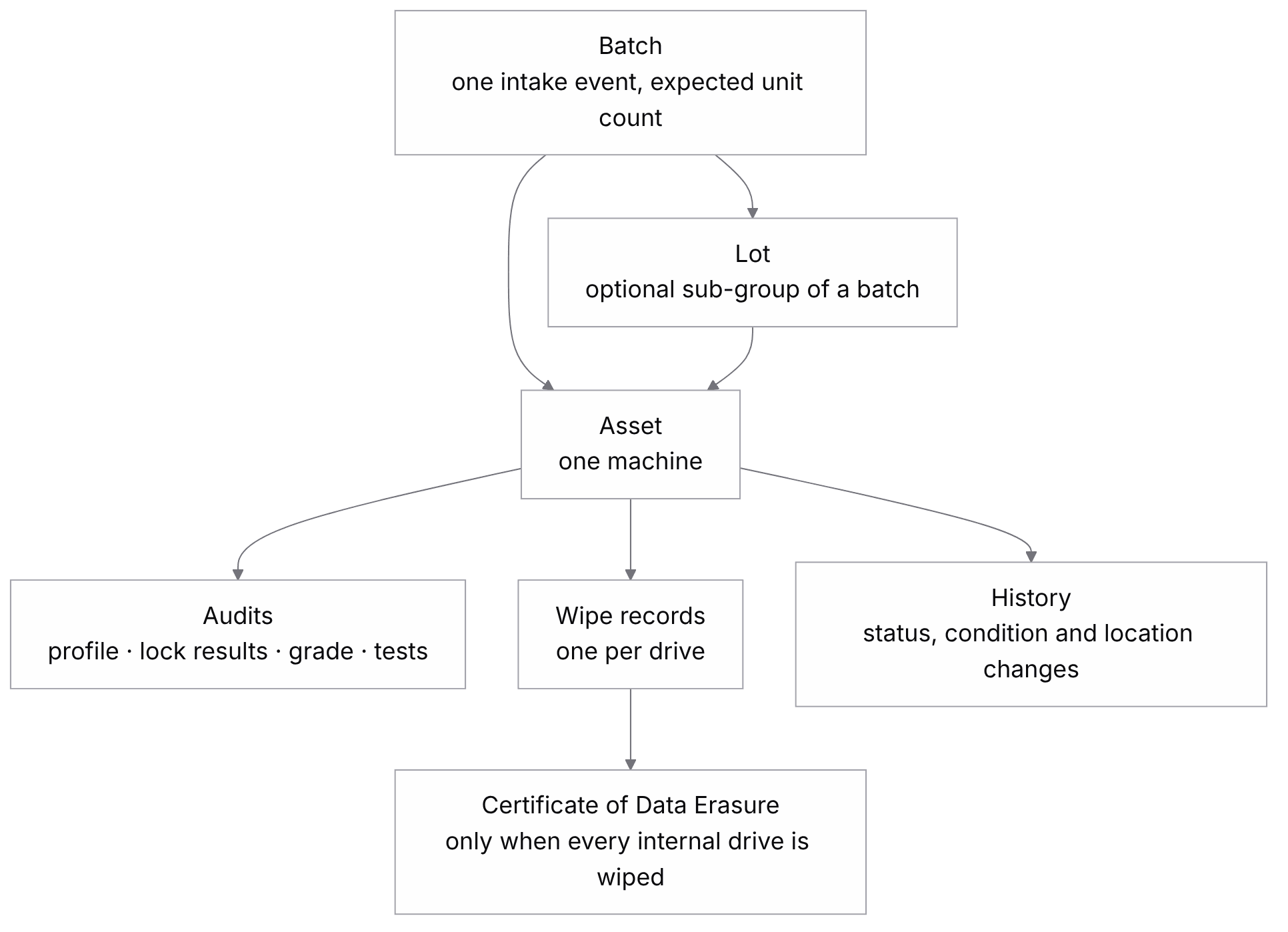
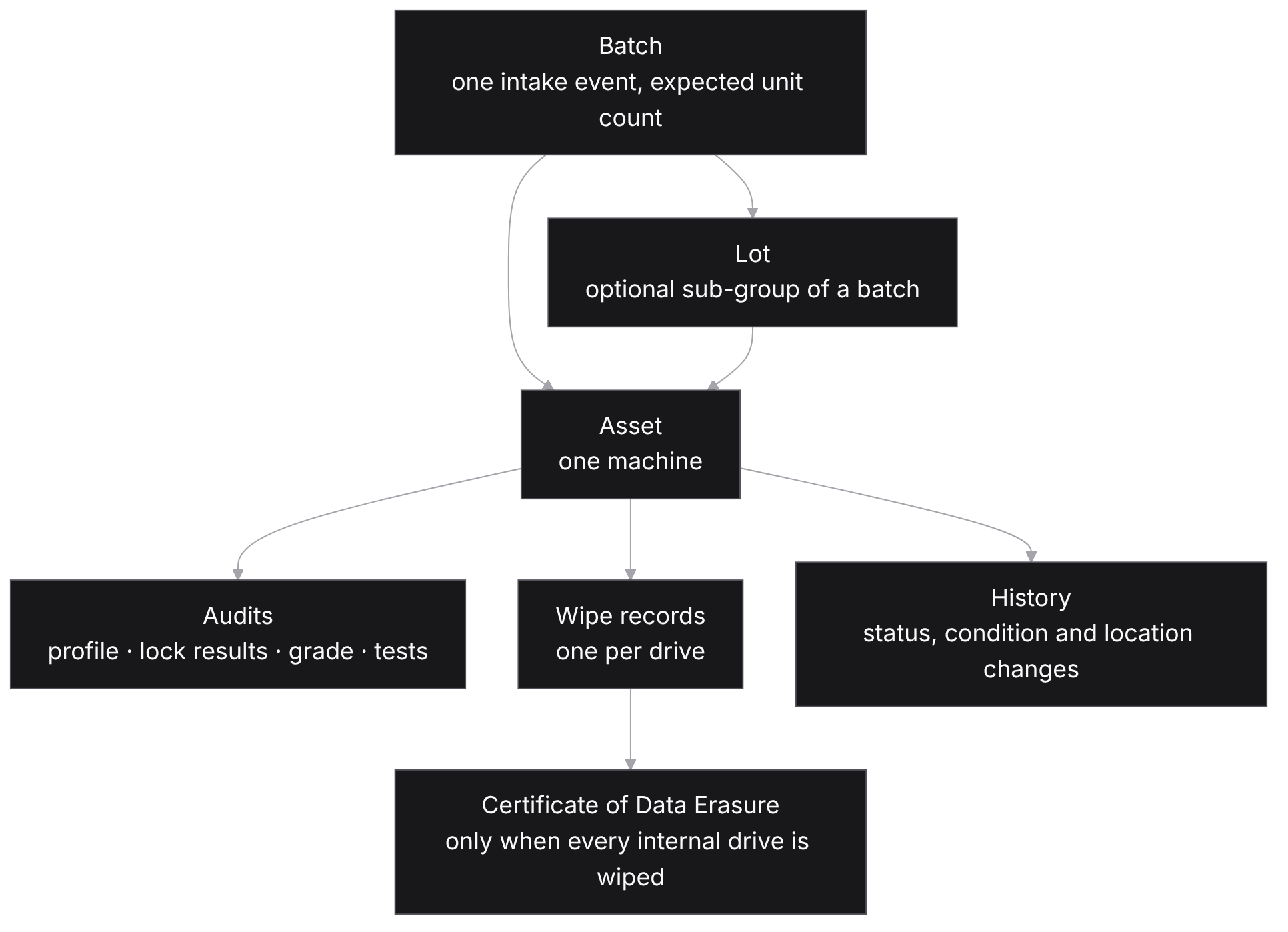
A batch is one intake event; a lot is an optional sub-group within it. The number of units in a batch is never stored. It is counted live on every read, so it cannot drift from the real number of assets, and it sits beside the expected count from the manifest. Each asset carries three separate statuses: where it is in the warehouse, its cosmetic grade, and the outcome of its testing. These had been one field, which could not say any of the three properly.
The certificate follows the same rule as everything else. While any internal drive is failed or has no record, the asset shows data wipe failed and no certificate is issued. The latest record for each drive counts, so a drive that failed and was then wiped again is wiped.
Since version 1.3.0 the platform also keeps a record of every Unfreeze. Each attempt gets its own identifier on the station and goes through the same offline queue as audits and wipes: with the network off it is held on the stick and sent by itself on reconnect, and a resend writes nothing new, so it appears on the device's page once. The table only ever gains rows. The server refuses to store unfrozen without a confirming second read, in the database as well as in the code, so a station that overstates cannot make the platform overstate. For now this is recorded evidence only: no certificate or release check reads it.
What it cannot do yet
- Autopilot can only ever be UNKNOWN for a clean machine, for the reason above.
- Hidden drives. When the boot environment cannot see a drive, the registry checks cannot run. One known cause is a drive behind a RAID or Intel RST controller, for which the station advises switching the BIOS to AHCI. Whether that explains the 42 machines is not established.
- BIOS passwords are read through a Linux interface that each vendor provides with its own driver (Dell, Lenovo and HP). Where that interface does not appear, the result is UNKNOWN. In the 170-laptop batch it did not appear on any of the 70 HP machines, so all 70 came back UNKNOWN.
- Some wipe methods are not yet proved on hardware, as above.
- Unfreeze has been run on one laptop and one drive. The refusal while busy and the case of a drive with no ATA security are covered by tests, not yet seen on hardware, and whether a given BIOS lets a suspend release the freeze varies by machine.
- Network boot is a written proposal, not a feature: every claim in it about how real machines behave is marked as still to be verified.
How it was built
I designed and developed Xorkbench from the ground up to address practical challenges in hardware auditing, data sanitisation and IT asset management, based on real problems encountered when diagnosing and auditing computers at the workbench.
I use Claude Code alongside Cursor IDE to assist with coding, debugging and testing. I direct the architecture, define how the system should behave, make technical decisions and guide implementation based on the project's requirements.
Technologies and tools
Each component uses technologies suited to its role.
| Component | Technology | Purpose |
|---|---|---|
| Hardware audit engine | Bash and Linux utilities | Identifies hardware, checks drive security, performs supported sanitisation operations and collects diagnostic evidence. |
| Station service | Python | Handles local operations, including drive checks, security-state detection and supported unfreeze procedures. |
| Audit interface | HTML, CSS and JavaScript | Provides a full-screen interface for technicians working at the audit station. |
| Boot environment | Ubuntu 24.04 live image | Runs the audit station independently of the installed operating system, with Secure Boot enabled. |
| Backend API | TypeScript and NestJS | Manages inventory, batches, assets, audits, erasure records and certificate generation. |
| Database | PostgreSQL and TypeORM | Stores and manages the platform's records. |
| Web application | TypeScript, Next.js and React | Provides the interface for managing equipment, reviewing results and accessing reports. |
| Offline synchronisation | PowerSync | Supports offline inventory work and synchronises recorded changes when connectivity returns. |
| Version control | Git and GitHub | Tracks source-code changes, maintains development history and hosts the project's repository. |
Source control
I use Git for version control and GitHub to host the repository, which brings together the audit station, the web platform, and their configuration and test files. This keeps a clear history of development, making it easier to investigate problems, find the change that introduced unexpected behaviour, and restore an earlier working version when necessary.
The source code is maintained separately from the deployed application and its live database.
Testing and reliability
Reliability is central to Xorkbench because its findings can influence decisions about data security, equipment reuse and the handling of retired IT assets.
The rules governing drive sanitisation are implemented in both the Python station service and the TypeScript platform API. Shared test cases help ensure that both components apply the same conditions when deciding whether an operation is permitted.
I use automated testing alongside practical hardware checks to identify problems and confirm expected behaviour. I also distinguish between hardware behaviour confirmed through physical testing and functionality that still requires further verification.
This is particularly important when dealing with storage devices, firmware restrictions, Windows installations, encryption and data erasure. A command completing successfully does not automatically prove that sanitisation has achieved the intended result. Xorkbench must record the available evidence and distinguish between successful operations, failed checks and results that remain unverified.
Where it is going
The focus is on helping organisations understand what is happening inside their computers, from the physical storage devices and firmware to Windows installations, encryption and device management. This includes identifying hardware, examining available system information, detecting security restrictions and establishing what can be verified before equipment is reused, recycled or transferred to another owner.
I continue to develop the system to provide a clearer picture of each machine's hardware, configuration and sanitisation status. By bringing these findings together with audit records and supporting evidence, Xorkbench helps organisations make informed decisions about their equipment and understand the limitations of the checks performed.
Related reading
Auditing a machine that has no operating system
You cannot run an agent on a device that arrives already wiped. Booting your own environment to inspect and erase someone else's hardware turns out to be less a tooling problem than a procedure one — and six of the rules that fell out are worth stating on their own.
What a Certificate of Data Erasure Should Actually Prove
A certificate should prove more than the fact that someone marked a task as complete. It should provide evidence of what happened to a drive, which method was used and whether the result was checked.